Intelligent Vehicle Analysis
Public Configurations
Context
Principles
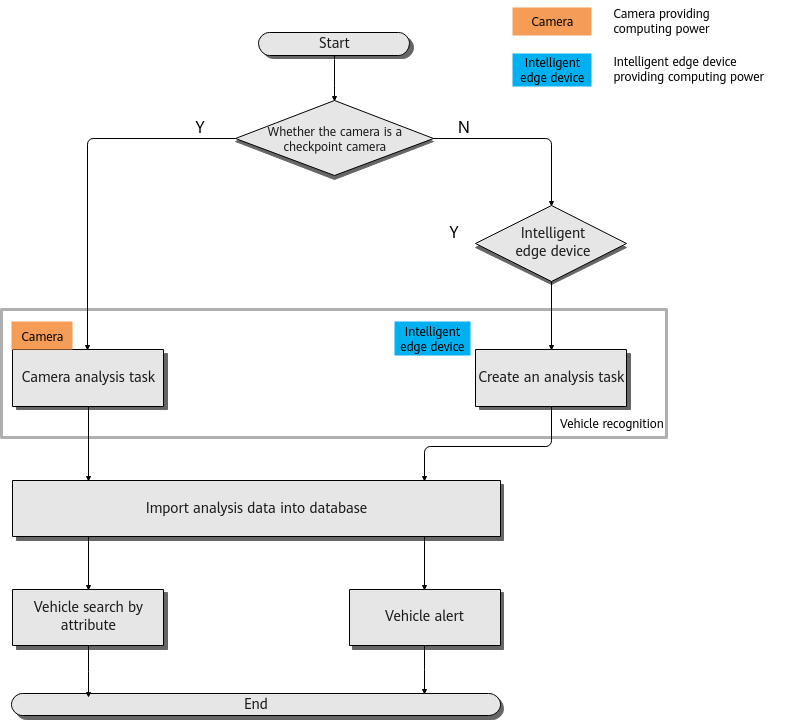
Differences
Table 4-249 describes the differences between the intelligent analysis using cameras and that using the HWT-IVS1800.
Intelligence Type |
Camera intelligence |
HWT-IVS1800 intelligence |
|---|---|---|
Requirement on the Camera |
|
|
Application Scope |
All |
China |
Task Priority |
If both camera intelligence and HWT-IVS1800 intelligence are enabled for the same camera, the HWT-IVS1800 stores only the analysis data generated by HWT-IVS1800 intelligence. |
|
Others |
|
|
Application Limitations
- For details about the data retention period and clearance rules, see Data Clearance Rules.
- Intelligent vehicle analysis is not supported for video encoded in the MJPEG format.
- To configure intelligent analysis for cameras on the iClient S100, the camera version must be 9.0.0 or later.
Enabling Vehicle Attribute Recognition (Based on Cameras)
Context
- Object classification algorithms can recognize motor vehicles, non-motorized vehicles, and pedestrians in video at the same time.
- The intelligent attribute of the camera is automatically set to Others when an intelligent analysis function is enabled.
- Cameras have been configured to synchronize time with the HWT-IVS1800. This function is enabled by default. For details, see Configuring Time Synchronization from a Camera to the HWT-IVS1800.
Procedure (on the LDU)
- Log in to the LDU as the admin user. (
 Logging In to the LDU)
 - Disable target detection, situation analysis, and object classification of the camera.
- For details about how to disable target detection, see Enabling Target Recognition.
- For details about how to disable situation analysis, see Situation Analysis.
- For details about how to disable object classification, see 4.
- Set the camera algorithm mode. You need to set the camera algorithm mode only for some camera models. If the camera algorithm mode is not displayed, skip this step.
- Click
 in the upper left corner.
 - Choose Intelligent Application > Camera Intelligence > Algorithm Mode.
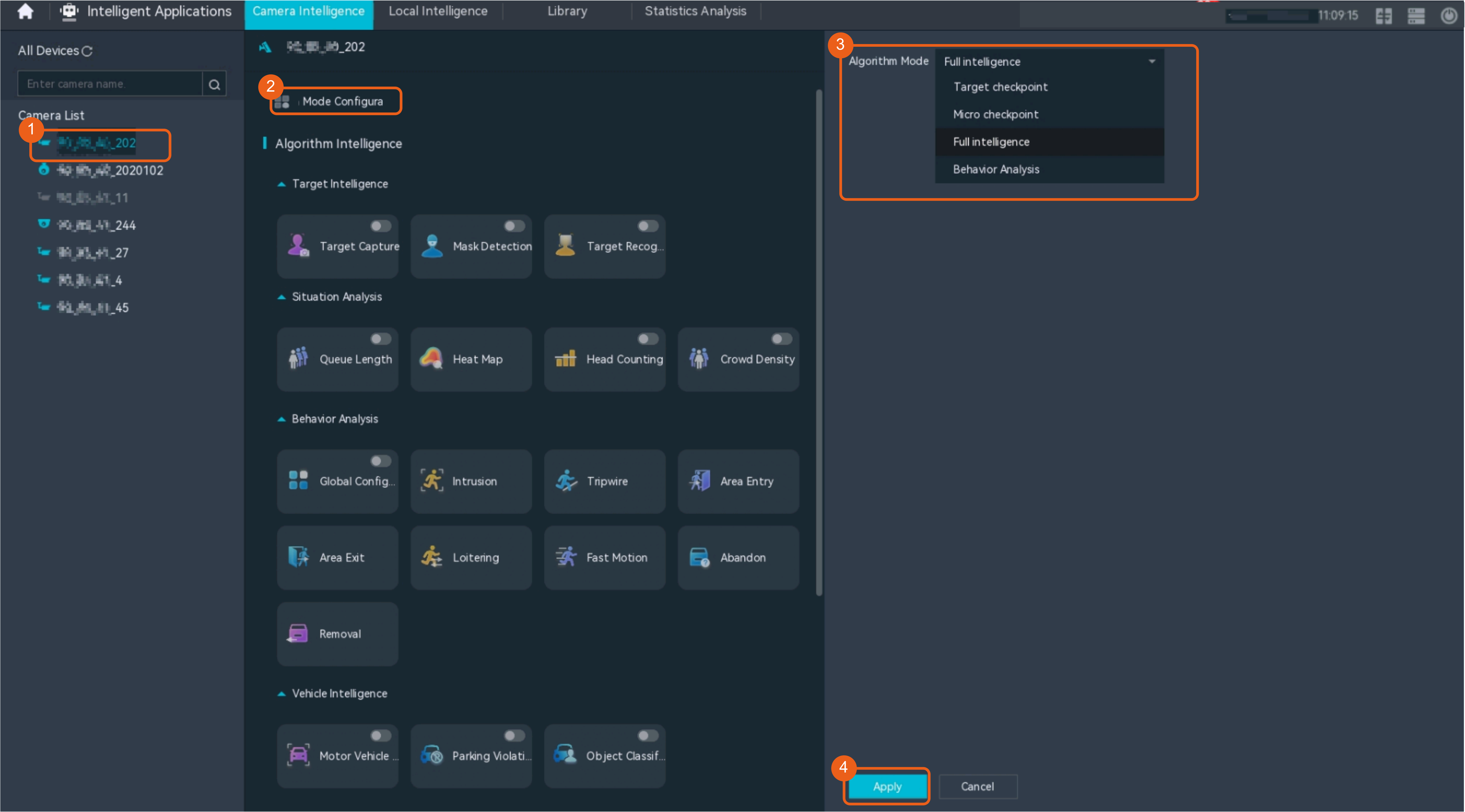
- Set the camera algorithm mode, as shown in Figure 4-277.
Table 4-250 describes the key parameters. You only need to set the parameters listed here.
- Click
- Configure object classification.
- Choose Intelligent Application > Camera Intelligence > Vehicle Intelligence > Object Classification.
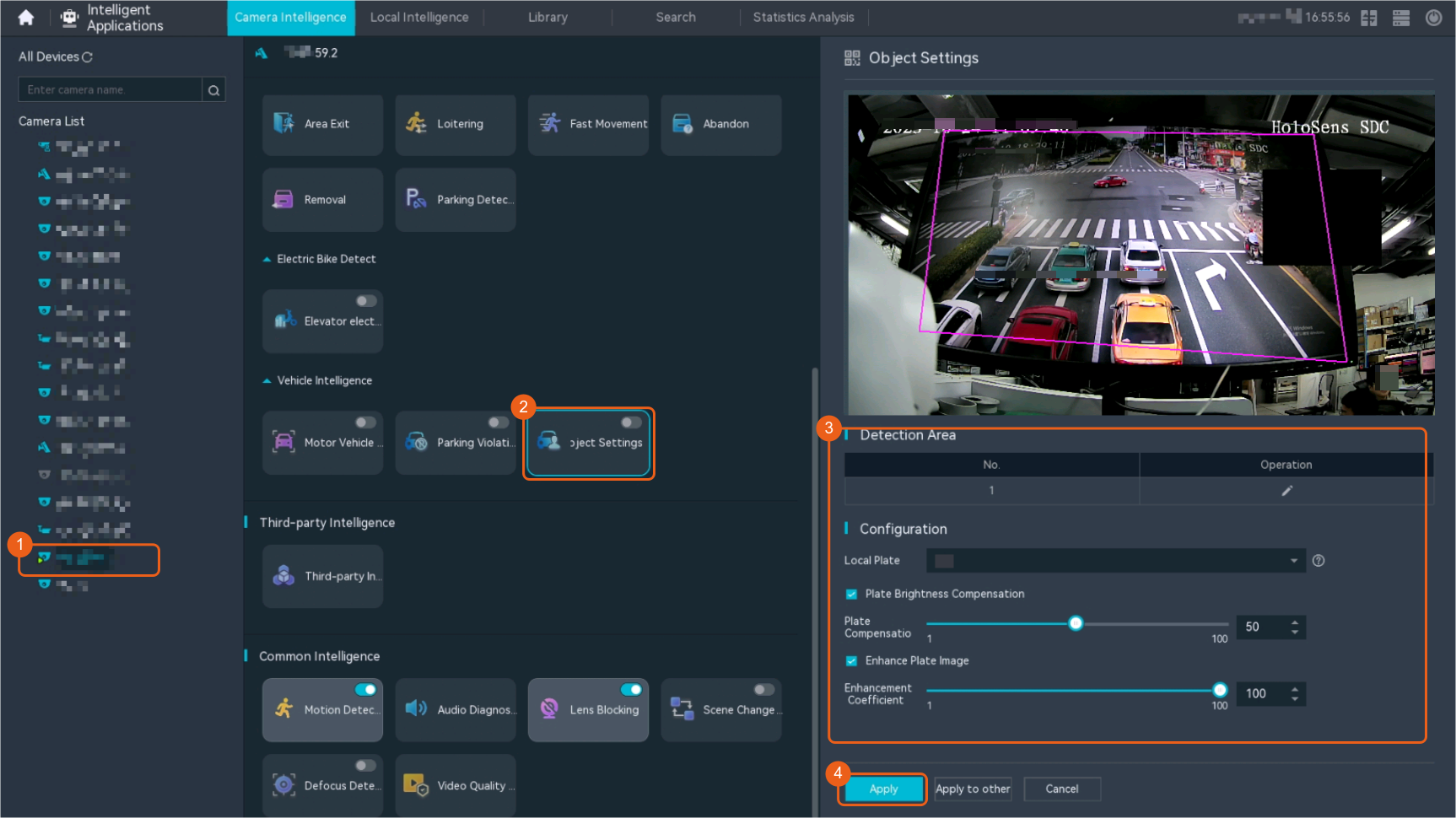
- Configure object classification, as shown in Figure 4-278.
Table 4-251 describes the parameters.
Table 4-251 Parameter descriptionParameter
Description
Enable
Indicates whether to enable object classification.
After this function is enabled, the camera detects motor vehicles, non-motorized vehicles, and pedestrians in live video.
Detection area
Draws a detection area.
Plate Brightness Compensation
If the brightness of the license plate is too high or too low, you can enable this function to compensate brightness for captured license plate images.
- Enable
- Disable
Plate Compensation Level
This parameter is available only when Plate Brightness Compensation is set to Enable. A higher compensation level indicates a larger degree for increasing or decreasing the license plate brightness.
Enhance Plate Image
The system enhances the license plate image through noise reduction, deblurring, or dirt removal to improve the license plate brightness and contrast.
Enhancement Coefficient
This parameter is available only when Enhance Plate Image is enabled. The default value is 100.
Local Plate
Preferential province (or city) name abbreviation used when the first character of a license plate cannot be recognized.
Only one province (or city) name abbreviation can be configured.
- Enable motor vehicle detection. Motor vehicle detection and object classification are mutually exclusive. Only one of them can be enabled at a time.
- Choose Intelligent Application > Camera Intelligence > Vehicle Intelligence > Motor Vehicle Detection.
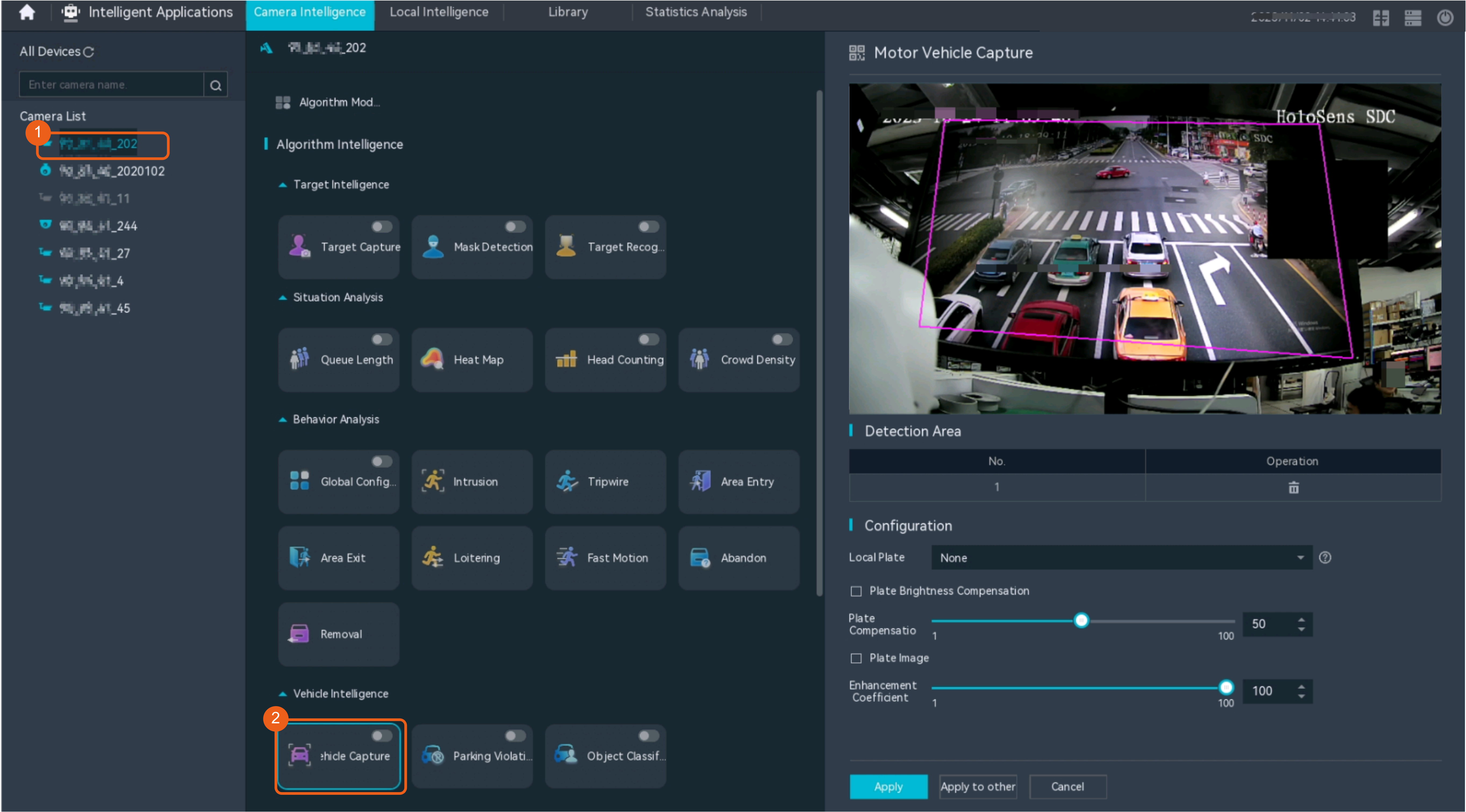
- Set motor vehicle detection parameters, as shown in Figure 4-279.
Table 4-252 describes the parameters.
Table 4-252 Parameter descriptionParameter
Description

Indicates whether to enable Motor Vehicle Capture.
After this function is enabled, the camera recognizes the license plate of a motor vehicle that appears in the live video.
Detection area
Draws a detection area.
Plate Brightness Compensation
If the brightness of a license plate is too high or too low, you can enable this function to compensate brightness for captured license plate images.
- Enable
- Disable
Plate Compensation Level
This parameter is available only when Plate Brightness Compensation is set to Enable. A higher compensation level indicates a larger degree for increasing or decreasing the license plate brightness.
Enhance Plate Image
The system enhances the license plate image through noise reduction, deblurring, or dirt removal to improve the license plate brightness and contrast.
Enhancement Coefficient
This parameter is available only when Enhance Plate Image is enabled. The default value is 100.
Local Plate
Local plate name abbreviation used when the first character of a license plate cannot be recognized.
Only one province (or city) name abbreviation can be configured.
Procedure (on the iClient S100)
- Configure the algorithm mode.
- On the iClient S100 home page, choose Maintenance Management > Smart Configuration.
- Select a camera connected to an HWT-IVS1800 and choose .
- Set Algorithm to Micro checkpoint.

After the algorithm mode is switched, the camera will restart for the setting to take effect. To configure intelligent services, wait for about 3 minutes after the restart.
- Click Save.
- Configure object classification.
- On the iClient S100 home page, choose Maintenance Management > Smart Configuration.
- Select a camera connected to an HWT-IVS1800 and choose .
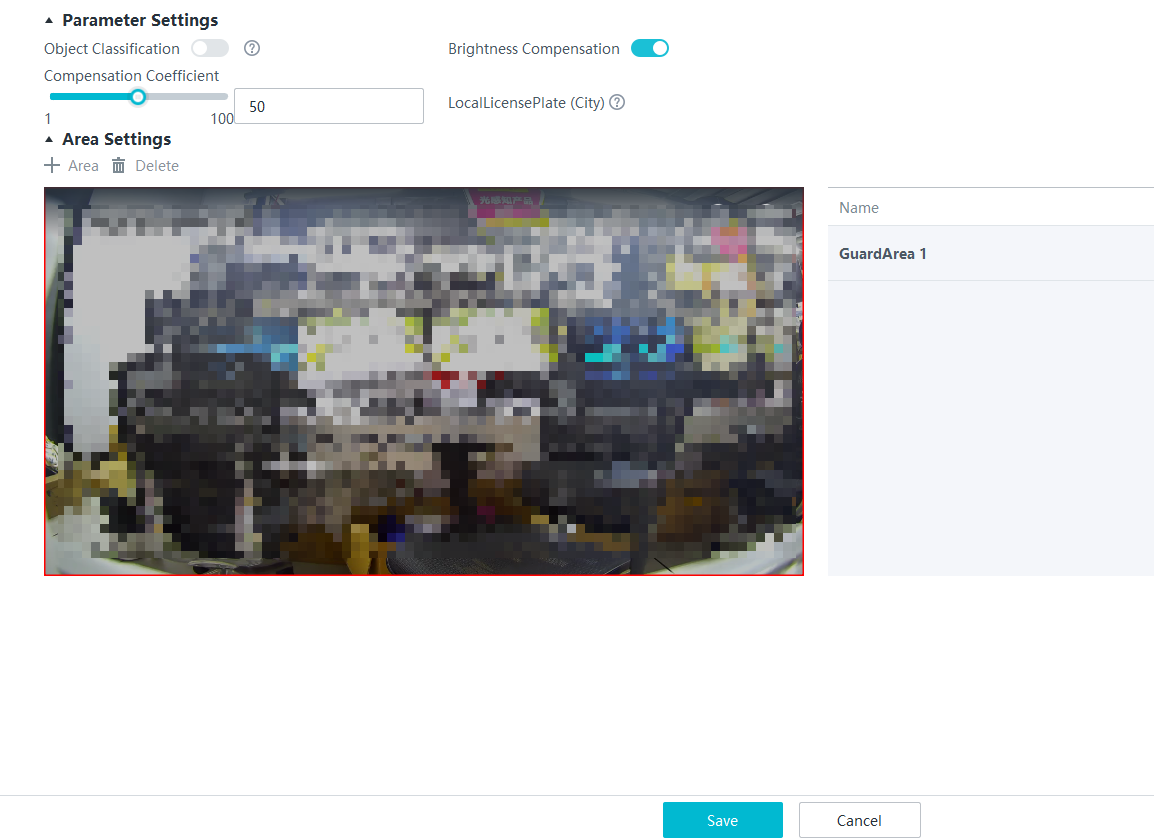
Enable the object classification function, add a detection area, and set related parameters, as shown in Figure 4-280. Table 4-253 describes the parameters.
Table 4-253 Parameter descriptionParameter
Description
Object Classification
Indicates whether to enable the object classification function.
NOTE:Object classification and motor vehicle detection cannot be enabled at the same time. To enable object classification, ensure that motor vehicle detection is disabled.
Brightness Compensation
If the brightness of a license plate is too high or too low, you can enable this function to compensate brightness for captured license plate images.
Compensation Coefficient
Level of brightness compensation for captured license plate images. This parameter is available only when Brightness Compensation is enabled. You can increase the value of the parameter when the environment is dark.
LocalLicensePlate (City)
Local plate name abbreviation used when the first character of a license plate cannot be recognized.
Only one province (or city) name abbreviation can be configured.
Area
Button for adding a detection area. You can draw only one detection area.
Delete
Button for deleting a selected detection area.
- Click Save.
- Verification
- On the iClient S100 home page, choose .
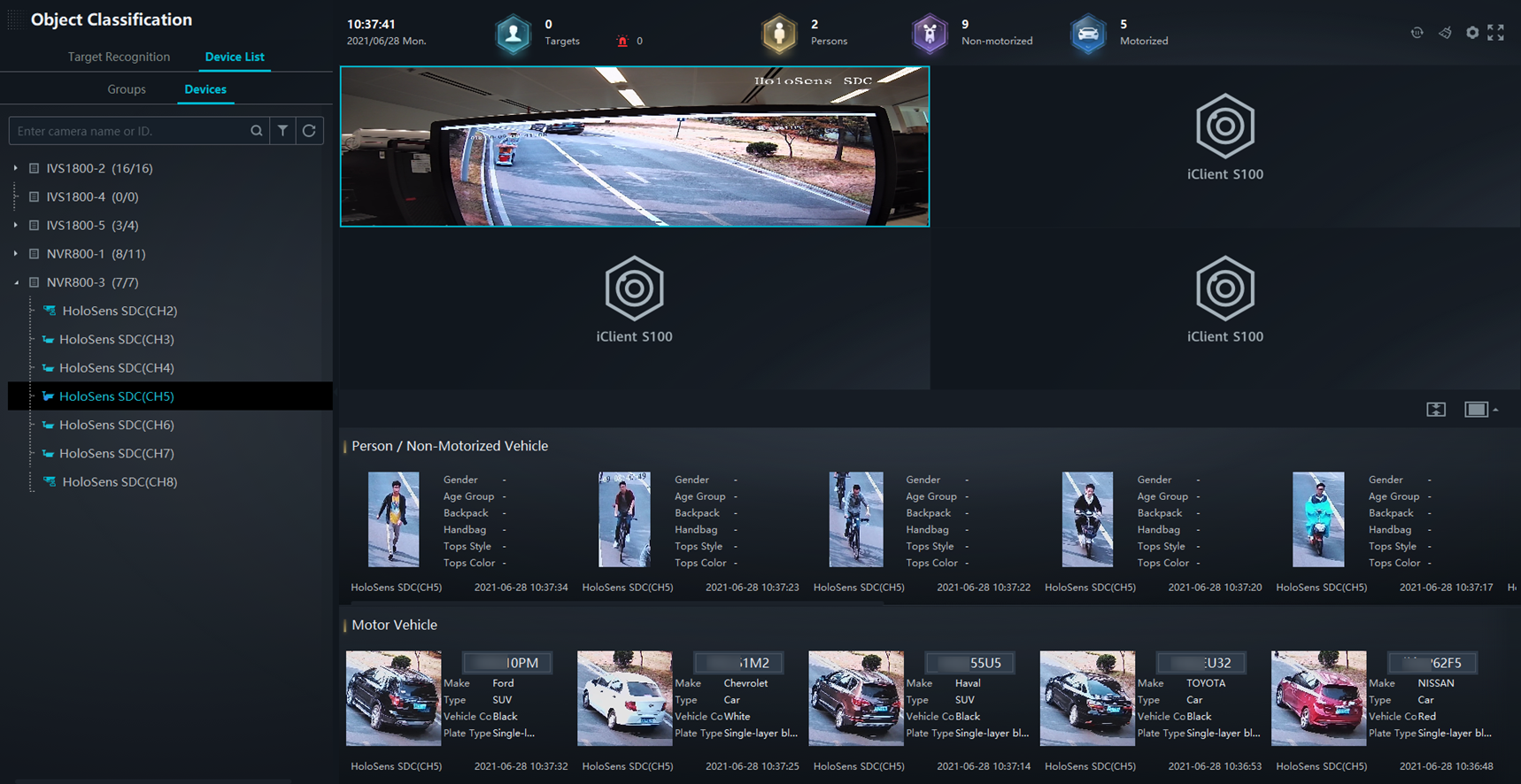
- Drag the required camera to the video pane. Object classification results and snapshots will be displayed below the video pane in real time, as shown in Figure 4-281.
Related Feature Operations
For details about operations related to vehicle attribute recognition, see the feature guide.
Enabling Vehicle Attribute Recognition in the HWT-IVS1800
This feature applies only to PoC scenarios outside the Chinese mainland.
Enabling Object Classification
Context
- Object classification algorithms can recognize motor vehicles, non-motorized vehicles, and pedestrians in video at the same time.
- Cameras have been configured to synchronize time with the HWT-IVS1800. This function is enabled by default. For details, see Configuring Time Synchronization from a Camera to the HWT-IVS1800.
Procedure
- Log in to the LDU as the admin user. ( Logging In to the LDU)
- Click
 in the upper left corner.
 - Choose .
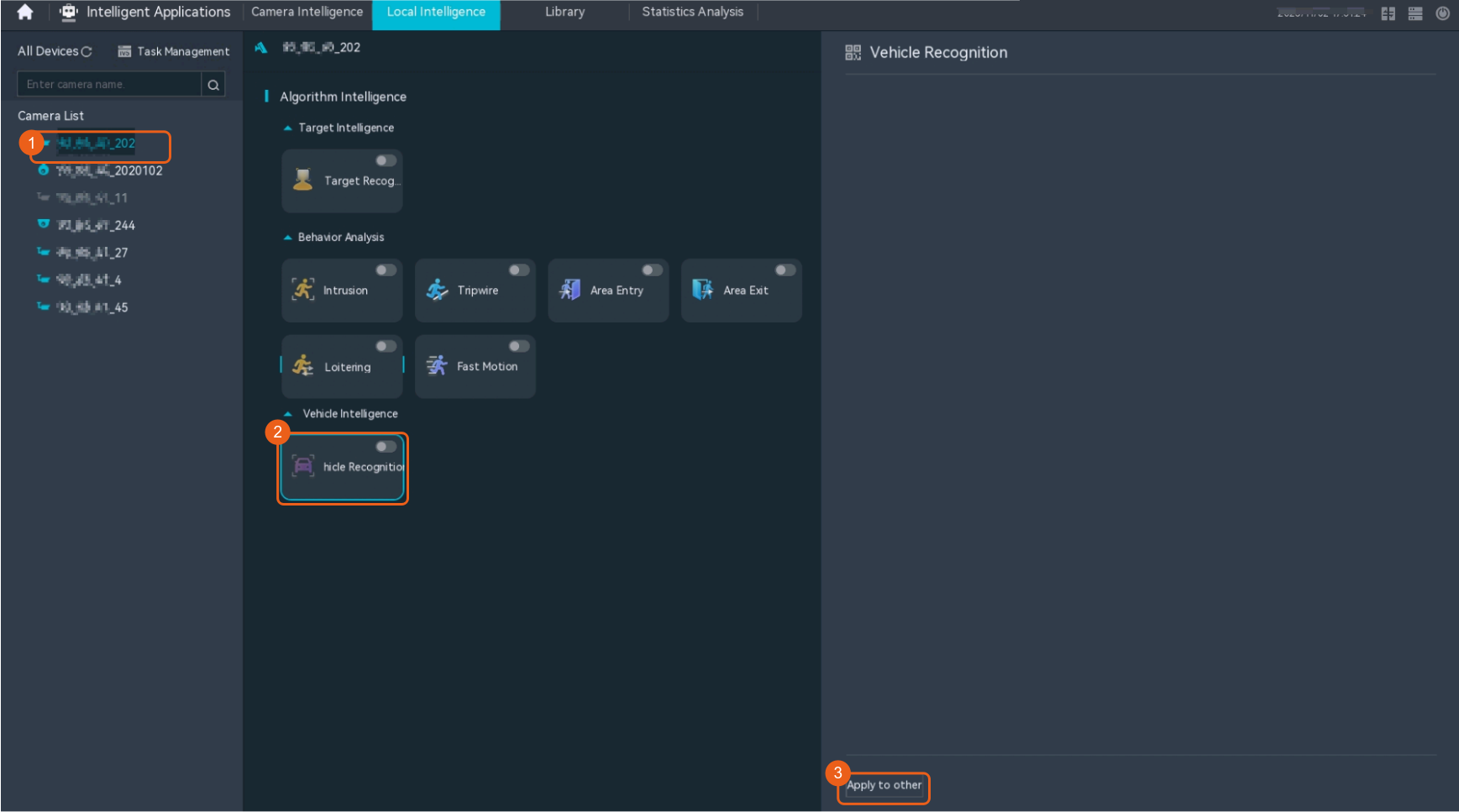
- Enable vehicle recognition, as shown in Figure 4-282.
Vehicle Attribute Recognition
Feature Description
Definition
Vehicle attributes in video can be detected in real time.
Vehicle attributes include license plate characters, vehicle color, vehicle type, vehicle make, vehicle model, and model year.
Customer Benefits
The system automatically recognizes vehicle attributes, reducing labor costs, shortening service processing time, and enhancing service efficiency.
Application Scenario
When a robbery is reported, the X city executes a vehicle attribute recognition task on cameras at main intersections during the case occurrence period to collect the vehicle attribute information.
Requirements
NE |
Version Requirement |
License Requirement |
Function |
|---|---|---|---|
HWT-IVS1800-D /HWT-IVS1800-E |
11.1.0 and later versions |
N/A |
Provides the vehicle attribute recognition function. |
Application Limitations
- Only the video-based mode is supported for object classification.
- Recognition of motor vehicles in mixed scenarios is supported only in the Chinese mainland.
- Vehicle search by image is not supported.
Feature Configuration (Based on Cameras)
Scenario Description
Table 4-254 describes the support for this feature in different client scenarios.
Client |
Feature Support |
Reference |
|---|---|---|
LDU |
Supported |
Enable object classification for cameras by referring to Enabling Vehicle Attribute Recognition (Based on Cameras). |
Camera web system |
Supported |
Complete the configuration by referring to the product documentation of cameras. |
iClient S100 |
Supported |
Enable object classification for cameras by referring to Enabling Vehicle Attribute Recognition (Based on Cameras). |
Feature Configuration (Based on the HWT-IVS1800)
This feature applies only to PoC scenarios outside the Chinese mainland.
Scenario Description
Table 4-255 describes the support for this feature in different client scenarios.
Client |
Feature Support |
Reference Document |
|---|---|---|
LDU |
Supported |
Configure the vehicle recognition function by referring to Enabling Vehicle Attribute Recognition in the HWT-IVS1800. |
iClient S100 |
Not supported |
- |
Object Classification
Feature Description
Definition
Person and vehicle attributes in video can be structured as input of intelligent analysis tasks.
Customer Benefits
This feature implements object classification in scenarios with both pedestrians and vehicles.
Application Scenario
Users can execute pedestrian and vehicle data structuring tasks on specified video.
Requirements
NE |
Version Requirement |
License Requirement |
Function |
|---|---|---|---|
HWT-IVS1800-D /HWT-IVS1800-E |
11.1.0 and later versions |
N/A |
Provides the pedestrian and vehicle data structuring function. |
iClient S100 |
V1.6.0 and later versions |
N/A |
Provides the alarm query function. |
Application Limitations
- Only the video-based mode is supported for object classification.
- Recognition of motor vehicles in mixed scenarios is supported only in the Chinese mainland.
- Vehicle search by image is not supported.
Feature Configuration (Based on Cameras)
Scenario Description
Table 4-256 describes the support for this feature in different client scenarios.
Client |
Feature Support |
Reference |
|---|---|---|
LDU |
Supported |
Enable object classification for cameras by referring to Enabling Vehicle Attribute Recognition (Based on Cameras). |
Camera web system |
Supported |
Complete the configuration by referring to the product documentation of cameras. |
iClient S100 |
Supported |
Enable object classification for cameras by referring to Enabling Vehicle Attribute Recognition (Based on Cameras). |
Feature Configuration (Based on the HWT-IVS1800)
This feature applies only to PoC scenarios outside the Chinese mainland.
Scenario Description
Table 4-257 describes the support for this feature in different client scenarios.
Client |
Feature Support |
Reference Document |
|---|---|---|
LDU |
Supported |
Configure the vehicle recognition function by referring to Enabling Vehicle Attribute Recognition in the HWT-IVS1800. |
iClient S100 |
Not supported |
- |
Feature Verification
Procedure
- Log in to the LDU as the admin user. ( Logging In to the LDU)
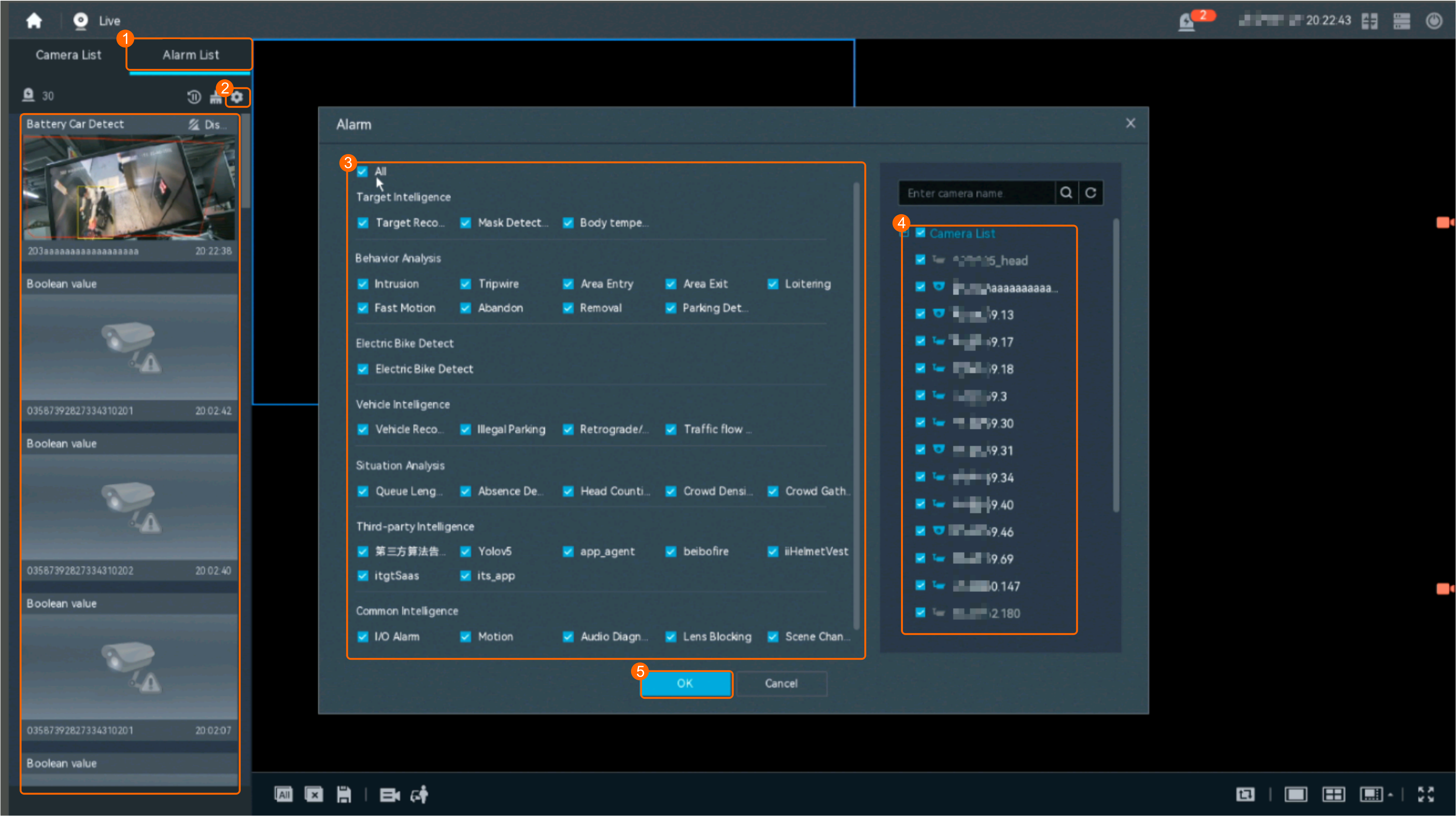
- View real-time alarms.
- Right-click on the desktop and choose Live > Alarm List.
- Click
 and select the type of alarms to be viewed, as shown in Figure 4-283.
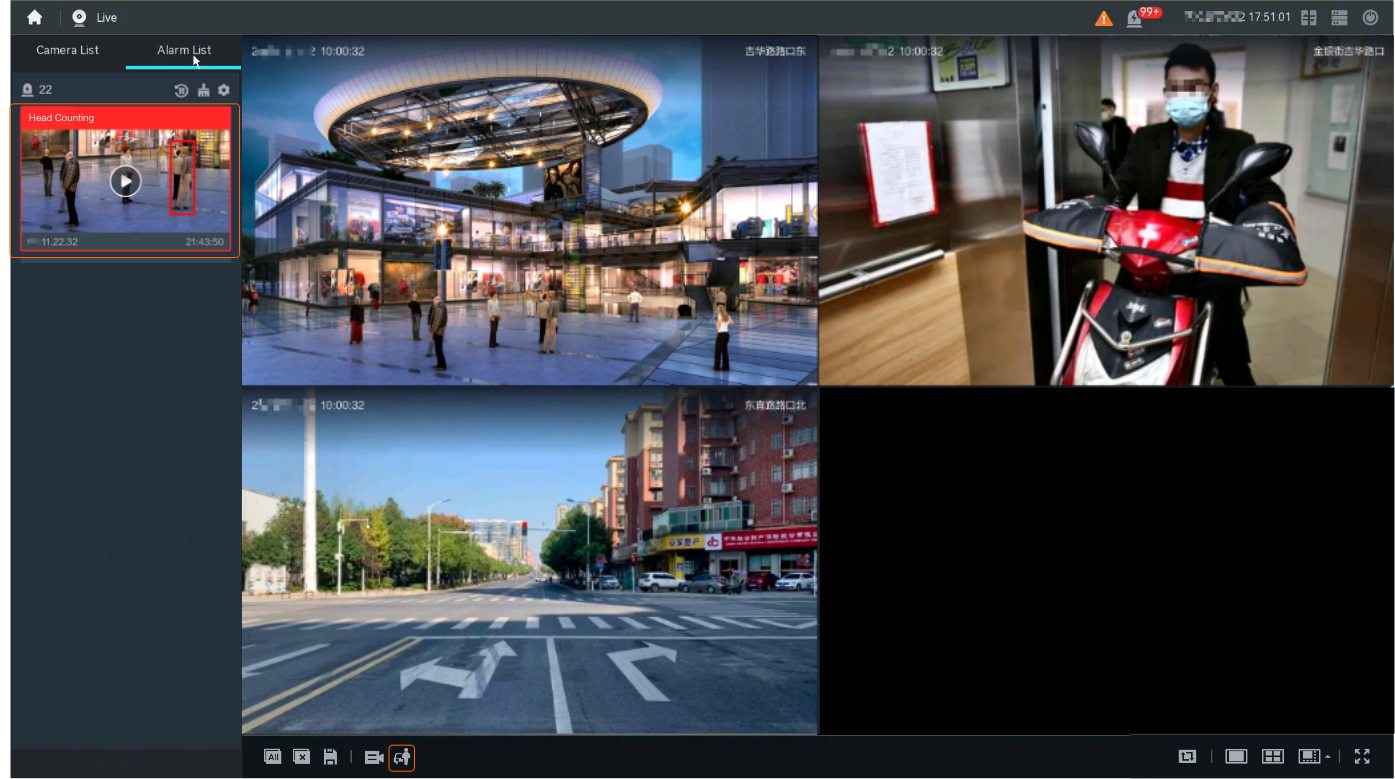
- Click an alarm card in the alarm list to view the alarm in full screen mode, as shown in Figure 4-284.Figure 4-284 Viewing an alarm in full screen mode
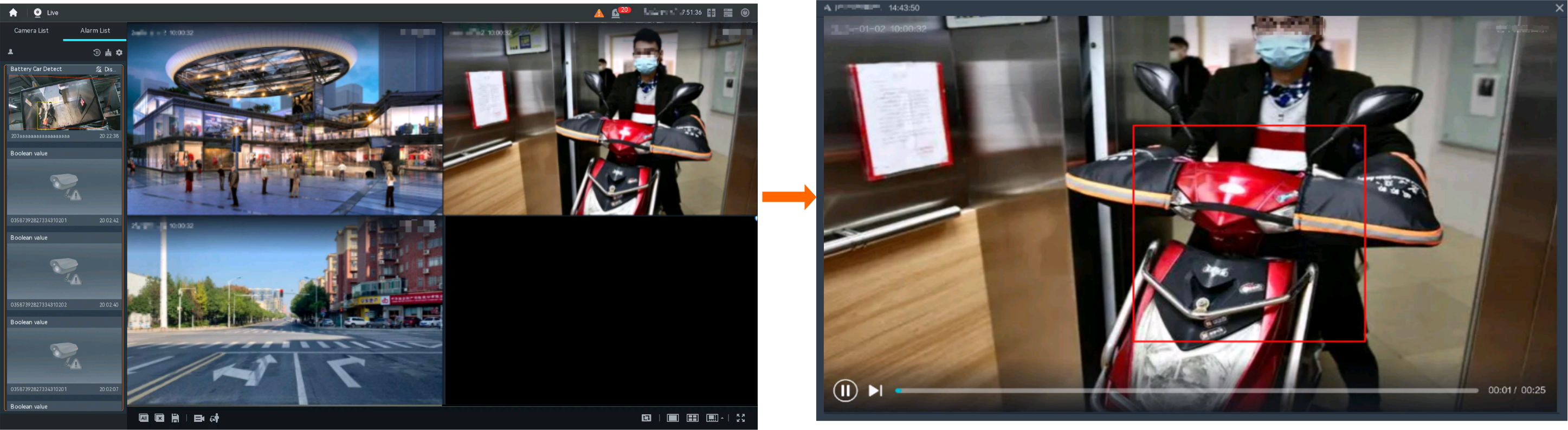
- By default, the alarm-triggered video is 10s long (5s before and 5s after the alarm time).
- If you click
 , the alarm list on the left stops refreshing the latest alarms. If you click
  again, the system refreshes all new alarms generated after the alarm refresh stops.
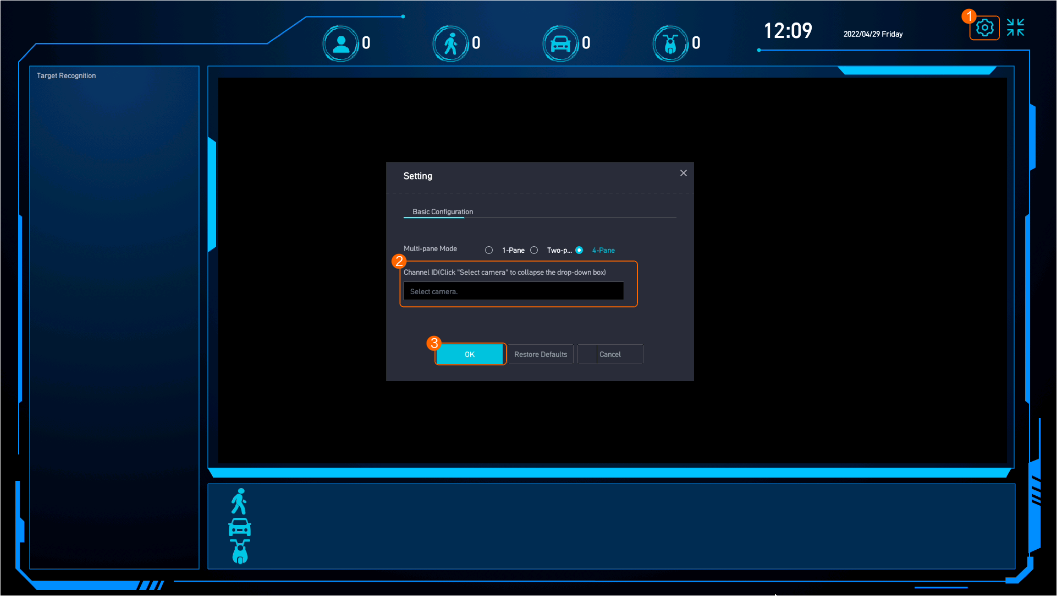
- (Optional) Click
 on the Live page. The object classification page is displayed, as shown in Figure 4-285.
- View object classification results, as shown in Figure 4-286.
Table 4-258 describes the mandatory parameters.
Table 4-258 Parameter descriptionParameter
Description
Multi-pane Mode
Pane layout.
- 1-Pane
- Two-Pane
- 4-Pane
Channel ID
ID of the camera for which the object classification has been configured. After this parameter is set, you can click Select camera to collapse the drop-down list box.
For details about how to configure object classification, see Public Configurations.
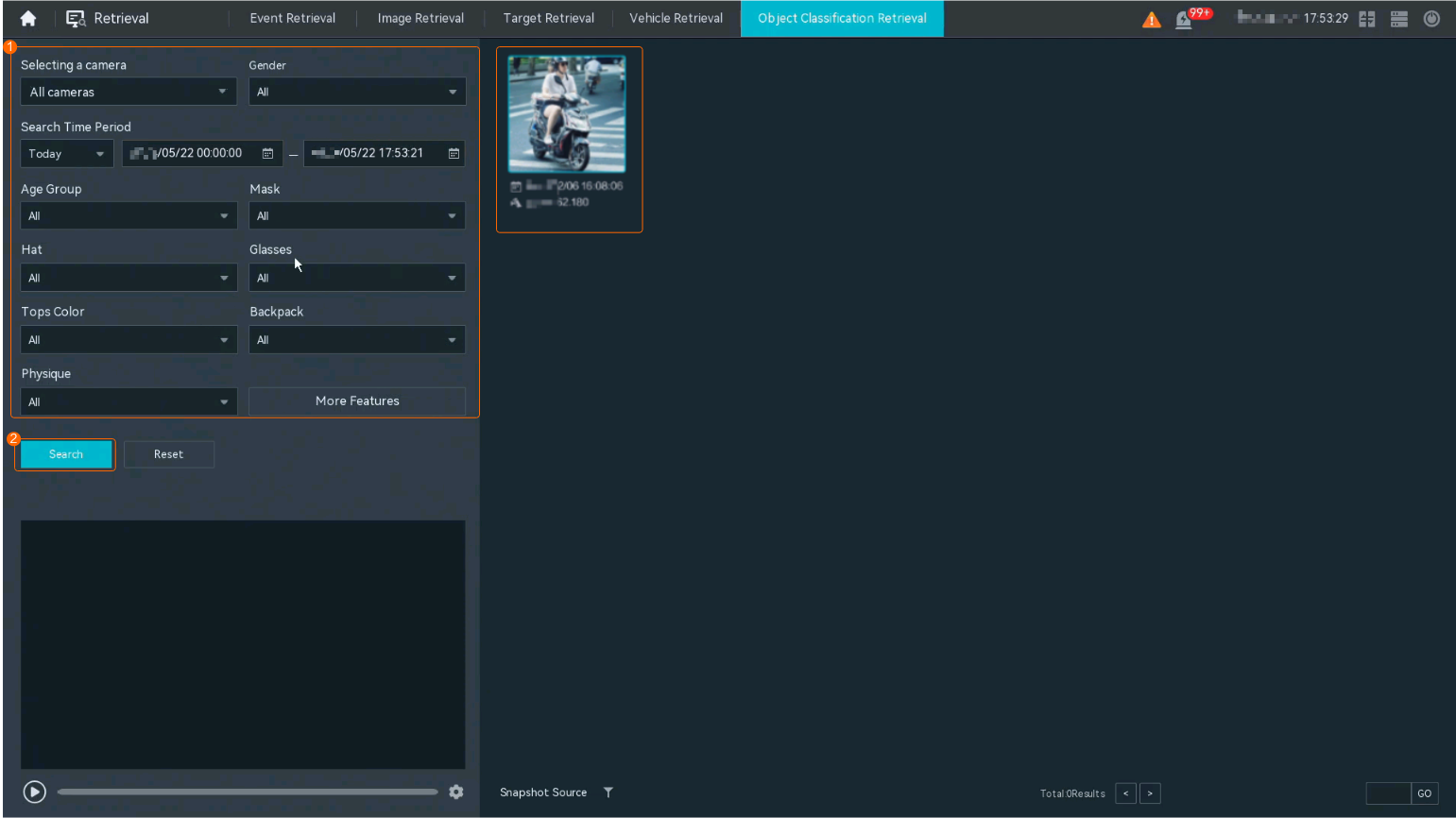
- View historical alarms.
- Right-click on the desktop and choose Retrieval.
- Choose Object Classification Retrieval.
- View alarms, as shown in Figure 4-287.
Object Classification Statistics
Feature Description
Definition
This feature allows users to query object classification data generated by a specified camera in a specified time segment, including querying data generated in each hour of a specified day, on each day of a specified week or month, and in each month of a specified quarter or year.
Customer Benefits
Users can analyze the vehicle flows (motor vehicles and non-motorized vehicles) and people flows, providing data support for decision-making.
Application Scenario
This feature is applicable to scenarios where users need to collect statistics on motor vehicles, non-motorized vehicles, and pedestrians, for example, campuses.
Application Limitations
- Currently, this feature is not supported on the LDU.
- Data generated in the last year can be queried by day, data generated in the last two years can be queried by week or month, and data generated in the last five years can be queried by quarter or year.
- The statistics are generated upon object classification analysis on video. To generate object classification statistics, users can use intelligent cameras that support object classification, or use generic cameras and configure object classification tasks for these cameras on the server.
- The time of all connected cameras must be synchronized with that of the IVS1800.
Feature Configuration
Scenario Description
Table 4-259 describes the support for this feature in different client scenarios.
Prerequisites
The data statistics function has been enabled on the OMU portal. The procedure for enabling this function is as follows.
For an IVS1800-D that has been upgraded to 11.1.0 or a later version, the data statistics function is enabled by default.
- Log in to the OMU portal as the admin user. (
 Logging In to the OMU portal)
 - Enable the data statistics function.
- Choose System > Advanced Configuration.
- Select MCS from the Module drop-down list box and click Search.
- Set OpenStatistic to 1.
Procedure
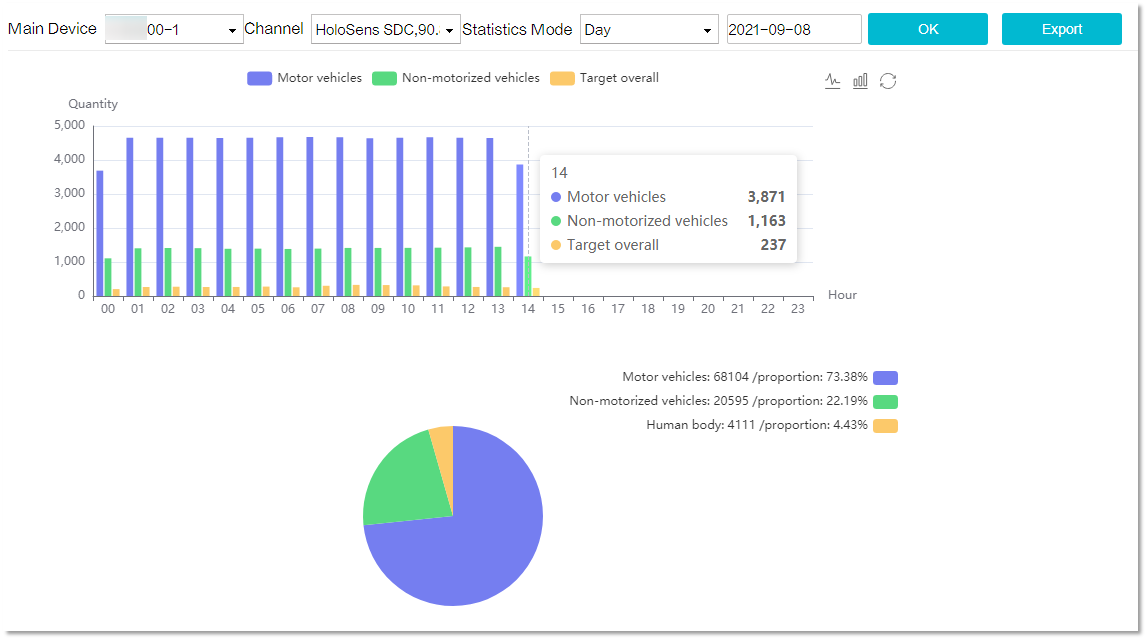
- On the iClient S100 home page, choose Intelligent Applications > Statistics > Object Classification Statistics.
- Set search criteria and click OK. The object classification statistics result is displayed, as shown in Figure 4-288. Table 4-260 describes the parameters.
Vehicle Search by Attribute
Feature Description
Definition
The device searches the vehicle alert reference list or dynamic list for similar objects based on vehicle attributes.
Customer Benefits
This feature allows users to search for data using a small number of conditions, improving search efficiency.
Application Scenario
A user searches the dynamic list for vehicle information based on the features of the suspicious vehicle.
Requirements
NE |
Version Requirement |
License Requirement |
Function |
|---|---|---|---|
HWT-IVS1800-D /HWT-IVS1800-E |
11.1.0 and later versions |
N/A |
Provides the function of vehicle search by attribute. |
Application Limitations
This function is used only for PoC outside the Chinese mainland.
Feature Configuration (Based on Cameras)
Scenario Description
Table 4-261 describes the support for this feature in different client scenarios.
Client |
Feature Support |
Reference Document |
|---|---|---|
LDU |
Supported |
Configure the vehicle recognition function by referring to Enabling Vehicle Attribute Recognition (Based on Cameras). |
Camera web system |
Supported |
Complete the configuration by referring to the product documentation of cameras. |
iClient S100 |
Supported |
Configure the vehicle recognition function by referring to Enabling Vehicle Attribute Recognition (Based on Cameras). |
Feature Configuration (Based on the HWT-IVS1800)
This feature applies only to PoC scenarios outside the Chinese mainland.
Scenario Description
- Table 4-262 describes the support for this feature in different client scenarios.
Client |
Feature Support |
Reference |
|---|---|---|
LDU |
Supported |
Configure the vehicle recognition function by referring to Enabling Vehicle Attribute Recognition in the HWT-IVS1800. |
iClient S100 |
Supported |
Complete the configuration by referring to this section. |
- After local intelligence is enabled or an analysis task is created for a camera, do not modify the attributes of the camera. Otherwise, target recognition and video structuring tasks will become invalid, and you will need to delete and recreate the tasks.
Prerequisites
- You have added vehicle records to vehicle lists.
- You have installed the video structuring algorithm plug-in package. The video structuring algorithm can extract structured data of persons, vehicles, and cyclists. For details about how to install the plug-in package, see the operations for loading an algorithm plug-in.
The video structuring algorithm plug-in package varies depending on the device model. To check the device model, view the electronic label attached to the chassis or choose Local Configuration > Basic Configuration on the OMU portal.
- Image storage parameters have been set. The detailed procedure is as follows: On the iClient S100 home page, choose . Right-click an HWT-IVS1800, choose Storage Management from the shortcut menu, select the desired camera, and set image storage parameters.
(Optional) Creating a Video Structuring Task
- On the iClient S100 home page, choose .
- Right-click an HWT-IVS1800 and choose Task Management from the shortcut menu.
- Click New Task.
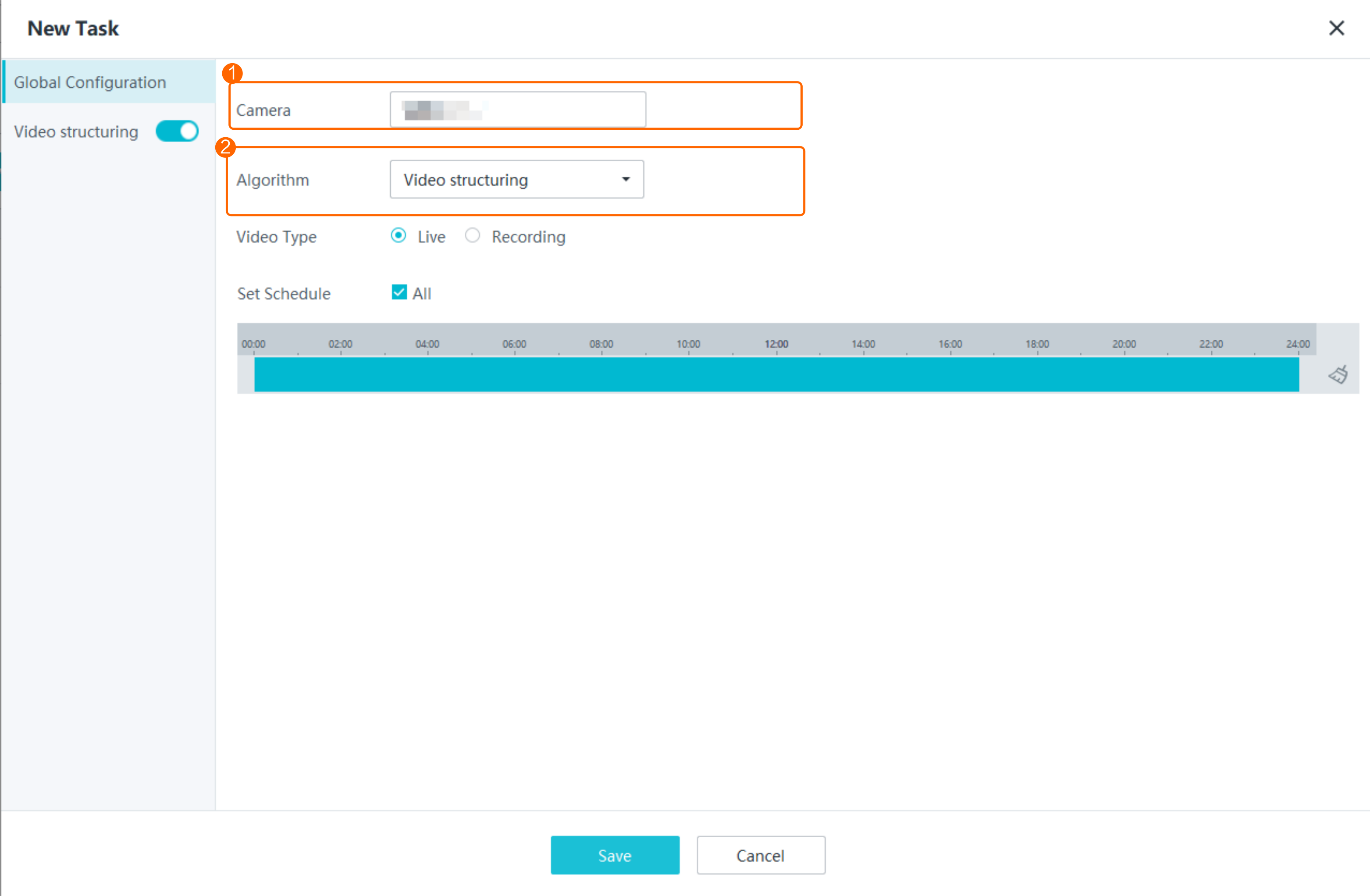
- Set video structuring global parameters, as shown in Figure 4-289.
Table 4-263 describes the parameters.
Table 4-263 Parameter descriptionParameter
Description
Camera
Select the camera for which you want to create an analysis task.
Algorithm
Select an algorithm as required.
- Behavior analysis
- Target recognition
- Video structuring
Video Type
Type of the video used for intelligent analysis. Select Live or Recording as required.
Set Schedule
Set the time segment for executing the analysis task as required.
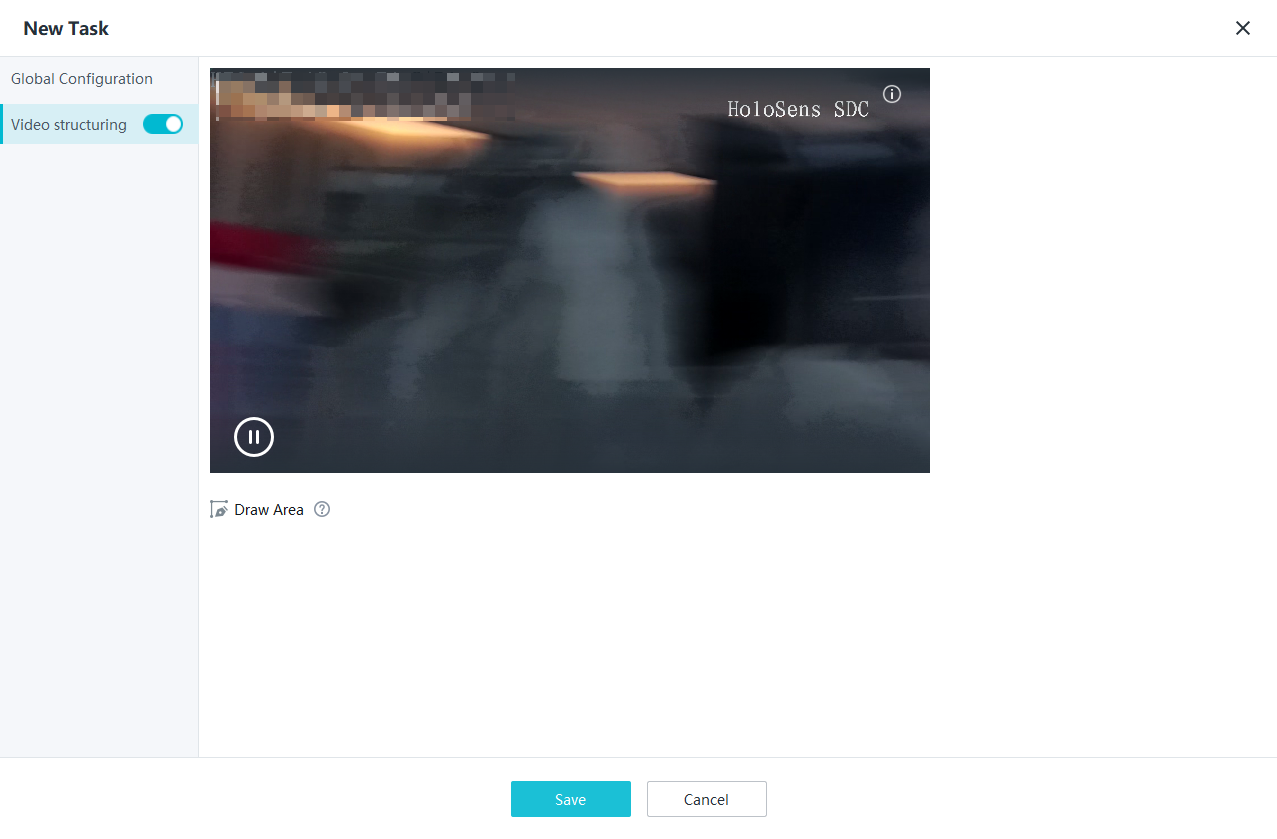
- Configure the video structuring task, as shown in Figure 4-290.
Table 4-264 Parameter description
Parameter
Description
Enable
Indicates whether to enable the current intelligent analysis task.
Detection Area
Button for drawing a detection area. You can double-click the left mouse button to complete drawing.
You can draw detection areas based on the following rules:
- You are advised to draw lines clockwise. The lines you draw cannot cross each other or form a sharp acute angle. Otherwise, detection areas may fail to be drawn.
- Do not draw polygonal areas that overlap with each other. Otherwise, false negatives may occur.
- Click Save.
Feature Verification
On the LDU, the method for vehicle recognition based on cameras is the same as that for vehicle recognition based on the HWT-IVS1800.
Procedure (on the LDU)
- Log in to the LDU as the admin user. ( Logging In to the LDU)
- Click
 in the upper left corner.
 - Choose Retrieval > Vehicle Retrieval.
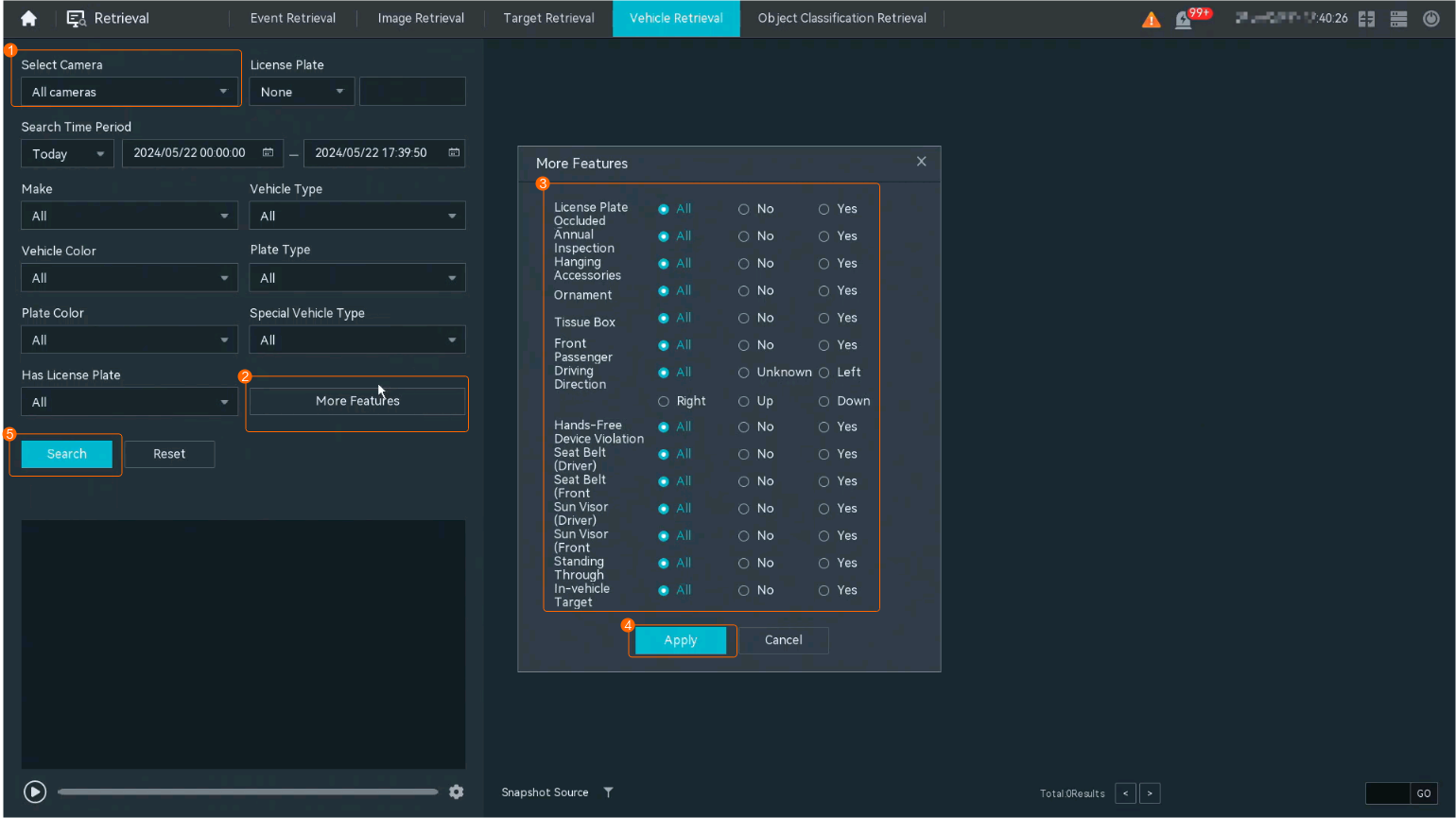
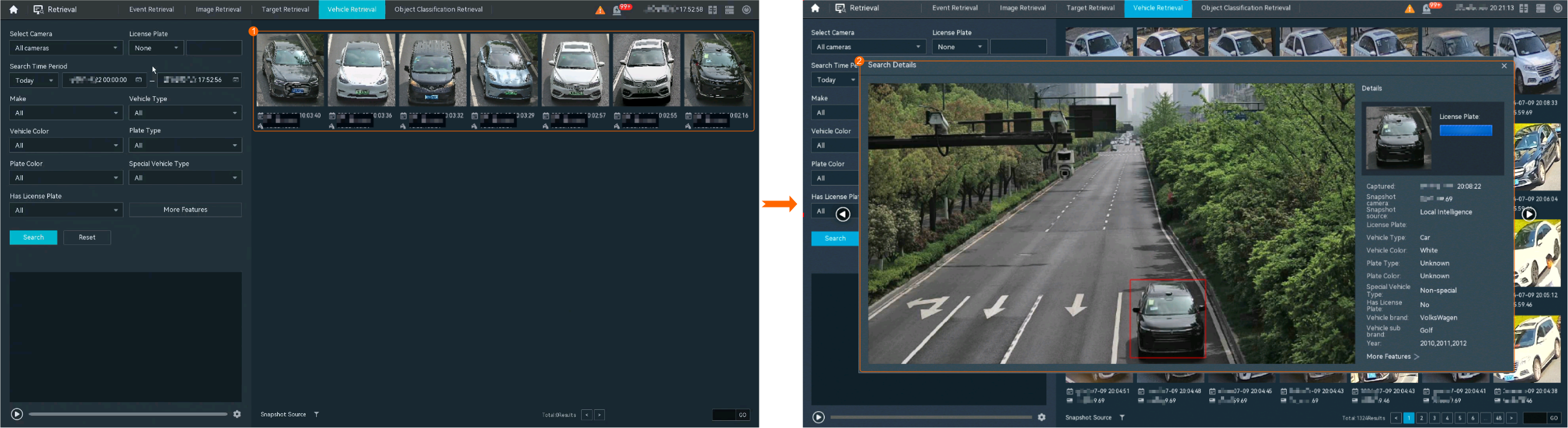
- Configure vehicle search, as shown in Figure 4-291.
- View the search results.The system can search for images that meet the search criteria. In the search results, you can double-click a small image to view the image details, and you can also preview the video clips corresponding to the search results in the lower left corner, as shown in Figure 4-292.
Procedure (on the iClient S100)
- On the iClient S100 home page, choose Basic Operations > Search > Vehicle Search.
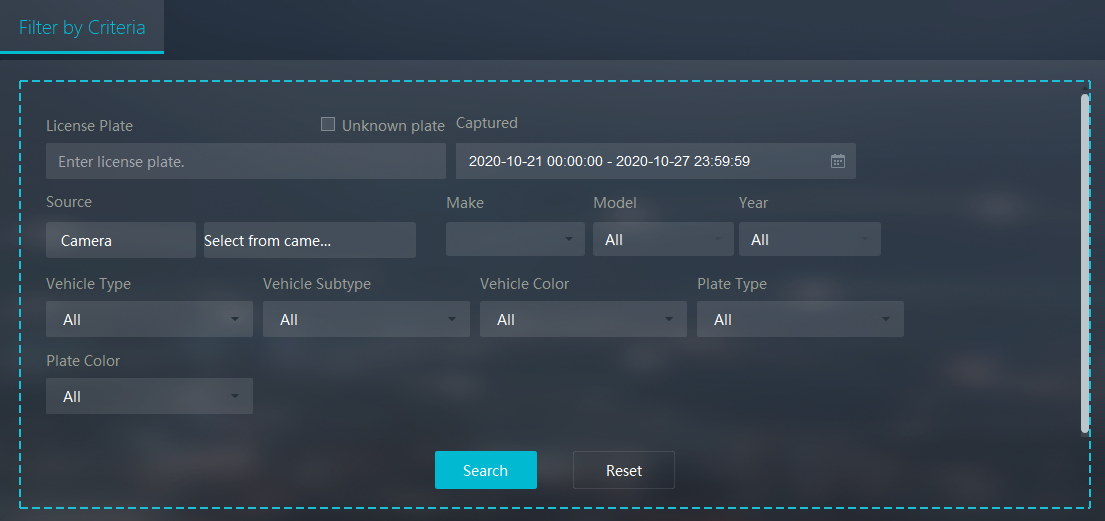
- Set vehicle search criteria, as shown in Figure 4-293.
Table 4-265 describes the key parameters. Set other parameters based on the site requirements.
Table 4-265 Parameter descriptionParameter
Description
License Plate
License plate characters of the vehicle to be searched for. (The value is case insensitive). Fuzzy search is supported, where the question mark (?) matches exactly one character, and the asterisk (*) matches zero or more characters.
Unknown plate
Indicates whether enable the iClient S100 to search for vehicles without specific license plates. If you select this parameter, you cannot enter License Plate.
Captured
Period in which vehicle images are captured.
Source
Cameras that capture vehicles to be searched for. You can select multiple cameras connected to various HWT-IVS1800s.
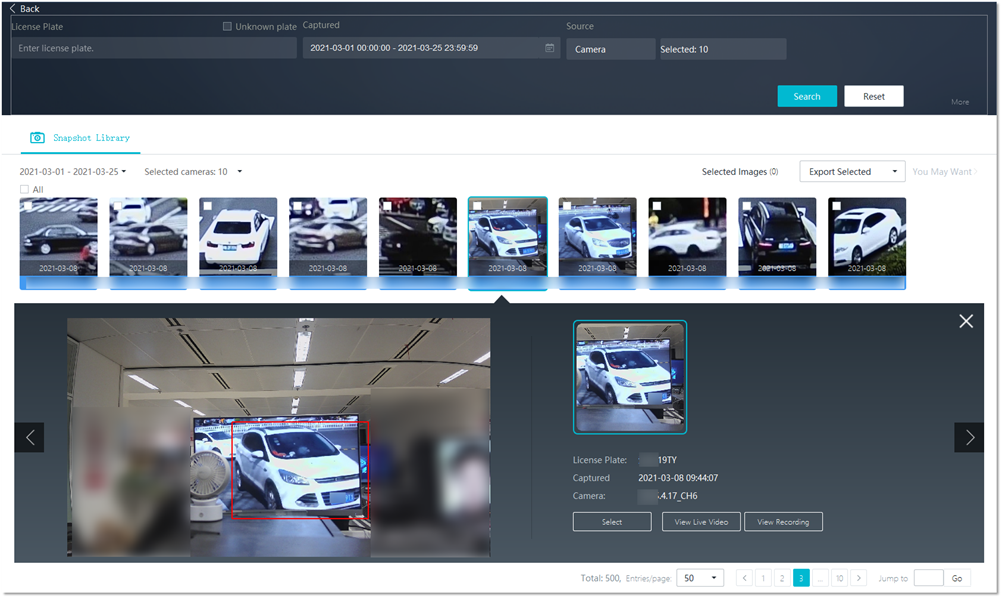
- Click Search. Then the iClient S100 searches for vehicles based on the set search criteria. Figure 4-294 shows the search result. The snapshot list contains vehicle images recognized by cameras and extracted by video structuring tasks.
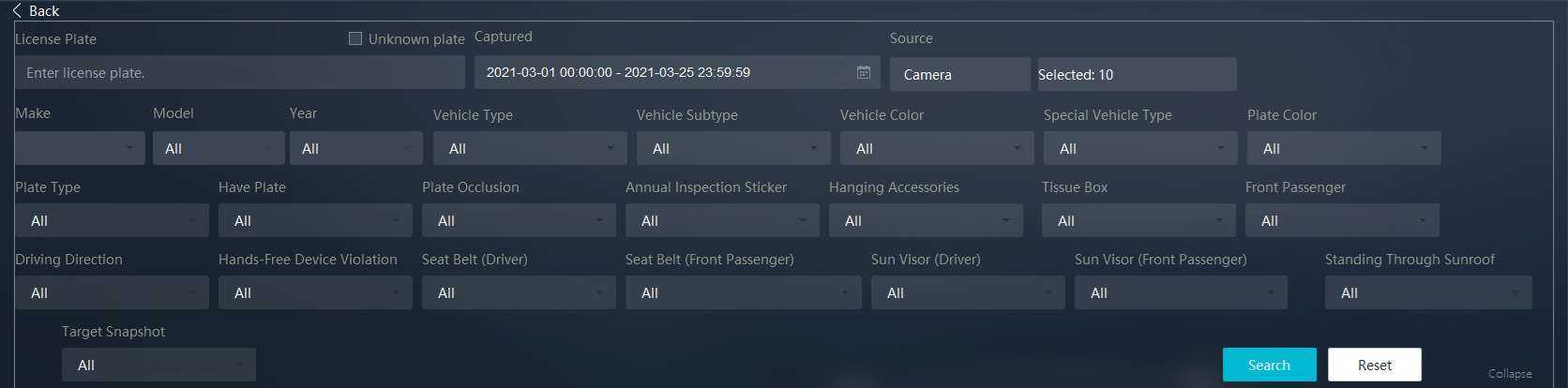
- Optional: (Optional) To obtain more accurate search results, click More and set more search criteria. Figure 4-295 describes the search criteria in the More expanded area.
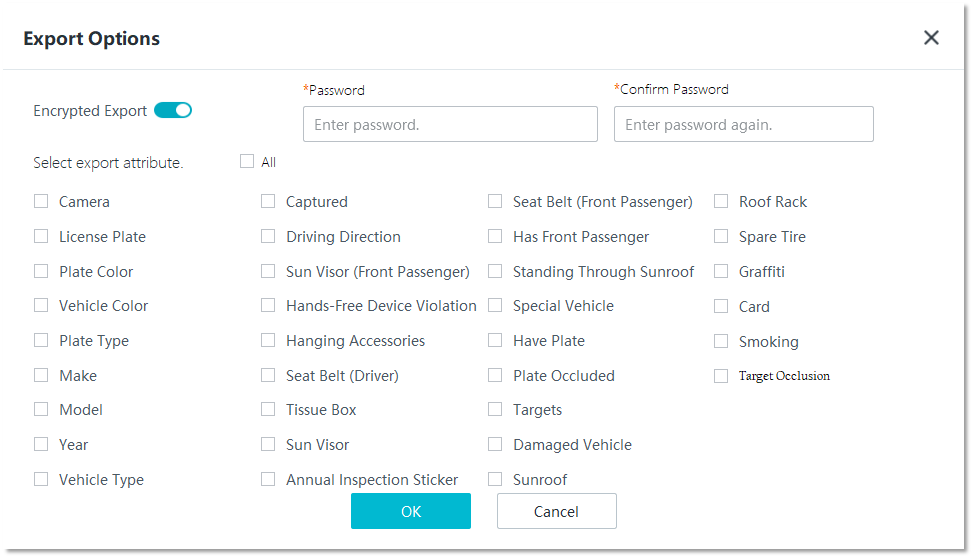
- Select multiple vehicle images and click Export Selected to export the selected images. Alternatively, select Export This Page or Export All from the drop-down list box as required. Figure 4-296 shows the Export Options dialog box.
You can enable the encrypted download function when exporting files. After this function is enabled, you need to enter the preset password when opening the file exported to the local computer.
The password must meet the following requirements:
- Contain 10 to 16 characters.
- Contain at least two types of the following: lowercase letters, uppercase letters, digits, and special characters.
- Be different from the user name or user name spelled backwards.
- Contain no spaces or Chinese characters.
- Be a strong password.
Vehicle Alert
Feature Description
Definition
License plate alert tasks can be created based on the alert time segment. Alarms can be generated upon detecting matched license plates in real time, and alarm information can be processed and queried.
Customer Benefits
The system automatically recognizes vehicles, reducing labor costs, shortening service processing time, and enhancing service efficiency.
Application Scenario
A user deploys a vehicle alert task on each entrance and exit of a campus so that the system reports an alarm to the video and image management platform when it detects a vehicle in the vehicle alert reference list.
Requirements
NE |
Version Requirement |
License Requirement |
Function |
|---|---|---|---|
HWT-IVS1800-D /HWT-IVS1800-E |
11.1.0 and later versions |
N/A |
Provides the vehicle alert function. |
Application Limitations
This function is used only for PoC outside the Chinese mainland.
Feature Configuration (Based on Cameras)
Scenario Description
Table 4-266 describes the support for this feature in different client scenarios.
Feature Configuration (Based on the HWT-IVS1800)
This feature applies only to PoC scenarios outside the Chinese mainland.
Scenario Description
Table 4-267 describes the support for this feature in different client scenarios.
Prerequisites
- The video resolution is within the range from 768 x 432 pixels to 4096 x 3000 (or 8,847,360) pixels. If the resolution is out of the range, no vehicle or license plate recognition result can be obtained on the iClient S100.
- The video structuring algorithm plug-in package has been installed. The video structuring algorithm can extract structured data of persons, vehicles, and cyclists. For details about how to install the plug-in package, see the operations for loading an algorithm plug-in.
The video structuring algorithm plug-in package varies depending on the device model. To check the device model, view the electronic label attached to the chassis or choose Local Configuration > Basic Configuration on the OMU portal.
- A vehicle list has been configured. For details, see Vehicle Alert Reference List.
- Before performing vehicle alert on common cameras, ensure that video structuring tasks have been configured for the cameras. For details, see (Optional) Creating a Video Structuring Task.
Creating a Vehicle Alert Task
- On the iClient S100 home page, choose .
- Right-click an HWT-IVS1800 and choose Vehicle Alert.
- Click New Alert.
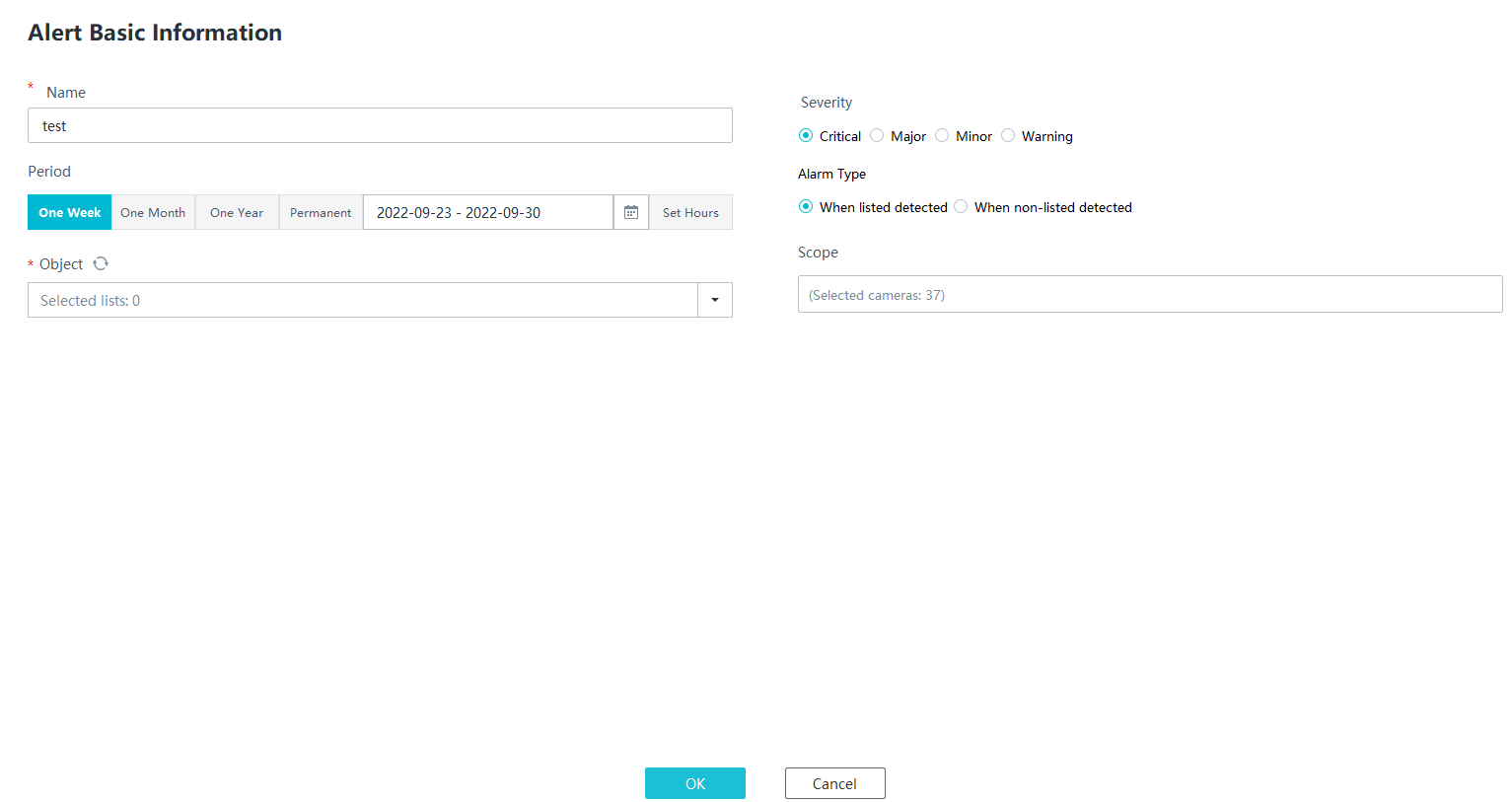
- Configure a vehicle alert task, as shown in Figure 4-297.
Table 4-268 describes the parameters.
Table 4-268 Parameter descriptionParameter
Description
Name
Alert task name.
Period
Time segment for executing a vehicle alert task.
- Select One Week, One Month, or One Year.
- Specify a period in the calendar.
- Click Set Hours to set the time segment for alert every day.
Object
Vehicle list for alert. You can select multiple vehicle lists.
Severity
Alert level. The options include Critical, Major, Minor, and Warning. The alert level is the same as the severity of alarms generated by the alert task.
Alarm Type
Alarm type.
- When listed detected: An alarm is generated when a recognized vehicle matches a vehicle record in the lists specified by Object.
- When non-listed detected: An alarm is generated when a recognized vehicle does not match a vehicle record in the lists specified by Object.
Scope
Alert scope. Click the text box under Scope and then select a maximum of 64 cameras from the camera list.
Parking Violation Detection
Feature Description
Definition
An alarm is generated when the camera detects a parking violation on a road.
- Allows users to specify multiple polygonal detection areas.
- Displays alarm information including the alarm type, occurrence time, duration, and object labeling.
Customer Benefits
The system automatically detects key information in video feeds through intelligent analysis, reducing labor costs and improving detection efficiency. Different intelligent analysis functions apply to different scenarios.
Application Scenario
This feature is applicable to scenarios, such as campus roads, where parking or long-time parking is not allowed.
Requirements
NE |
Version Requirement |
License Requirement |
Function |
|---|---|---|---|
HWT-IVS1800-D/HWT-IVS1800-E |
11.1.0 and later versions |
N/A |
Handles parking violation alarms. |
SDC |
9.0.0 and later versions |
N/A |
Supports parking violation detection. |
Application Limitations
- Onsite conditions such as illumination and shooting angles affect the detection accuracy.
- Currently, this feature is not supported on the iClient S100.
Feature Configuration (Based on Cameras)
Scenario Description
Table 4-269 describes the support for this feature in different client scenarios.
Client |
Feature Support |
Reference |
|---|---|---|
LDU |
Supported |
Enable motor vehicle detection for cameras by referring to Enabling Vehicle Attribute Recognition (Based on Cameras). NOTE:
To enable parking violation detection, first enable motor vehicle detection. |
Camera web system |
Supported |
Complete the configuration by referring to the product documentation of cameras. |
iClient S100 |
Supported |
For details, see Procedure (on the iClient S100). |
Prerequisites
You have performed the operations in Enabling Vehicle Attribute Recognition (Based on Cameras). No special configuration is required.
Procedure (on the LDU)
To view the configuration guide video, you can click  in the upper left corner on the Configuration tab page, and scan the QR code.
- Log in to the LDU as the admin user. ( Logging In to the LDU)
- Click
 in the upper left corner.
 - Choose Intelligent Application > Camera Intelligence > Vehicle Intelligence > Parking Violation Detection.
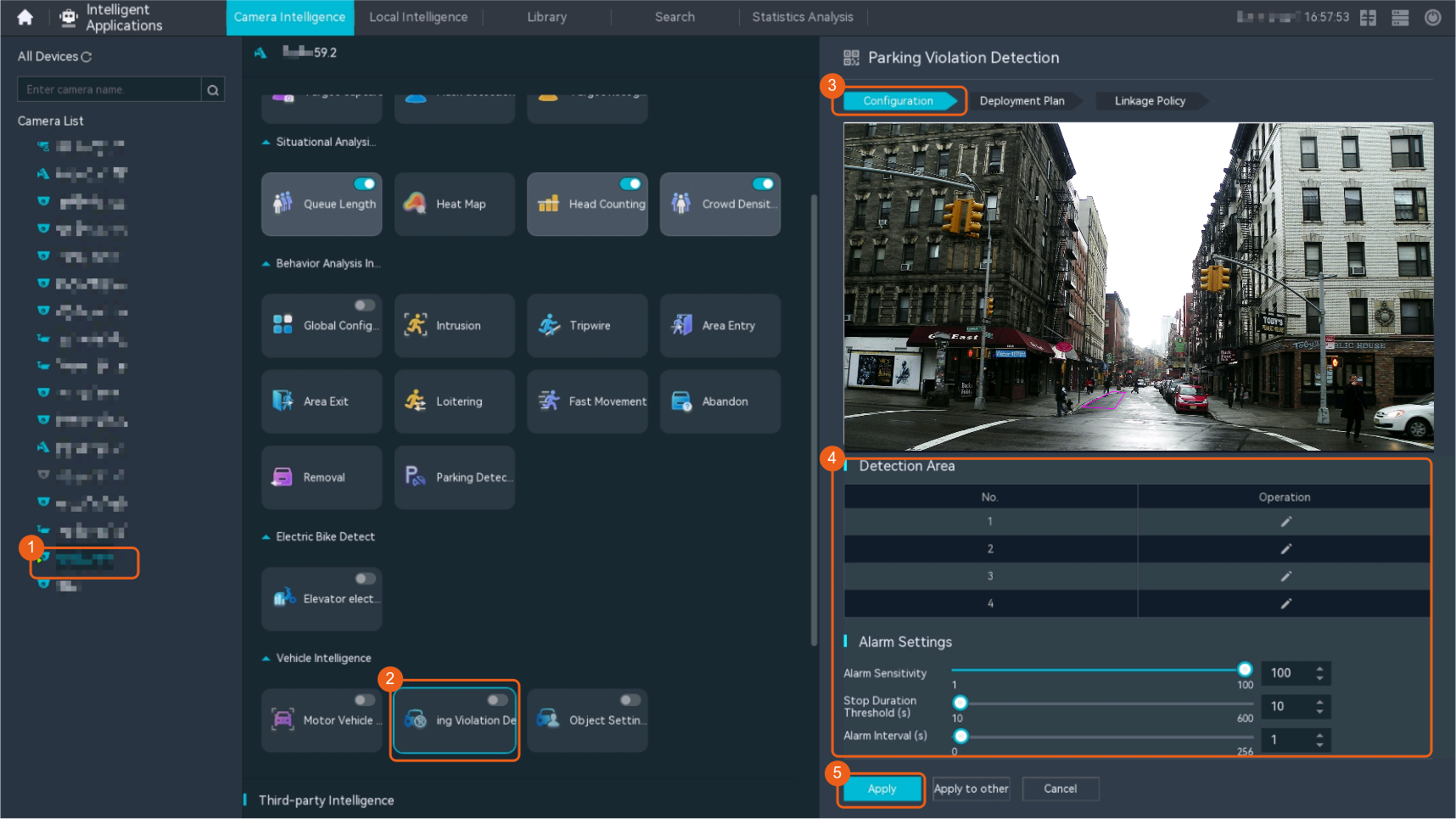
- Configure parking violation detection, as shown in Figure 4-298.
Table 4-270 describes the key parameters.
Table 4-270 Parameter descriptionType
Parameter
Description
Detection switch

Toggle on Parking Violation Detection.
When a parking violation is detected, snapshot taking will be triggered.
NOTE:Motor vehicle detection and object classification cannot be enabled at the same time.
Detection area
No.
ID of a detection area. Only one detection area can be drawn.
Operation
Column containing the buttons for drawing or deleting a detection area on the video image.
Alarm Settings
Detection Sensitivity
Detection sensitivity.
The value ranges from 1 to 100. A larger value indicates a higher sensitivity.
Parking Violation Threshold
Vehicle stay duration threshold. An alarm is triggered only when the vehicle stay duration exceeds the value of this parameter.
Alarm Interval(s)
Interval at which alarms are checked.
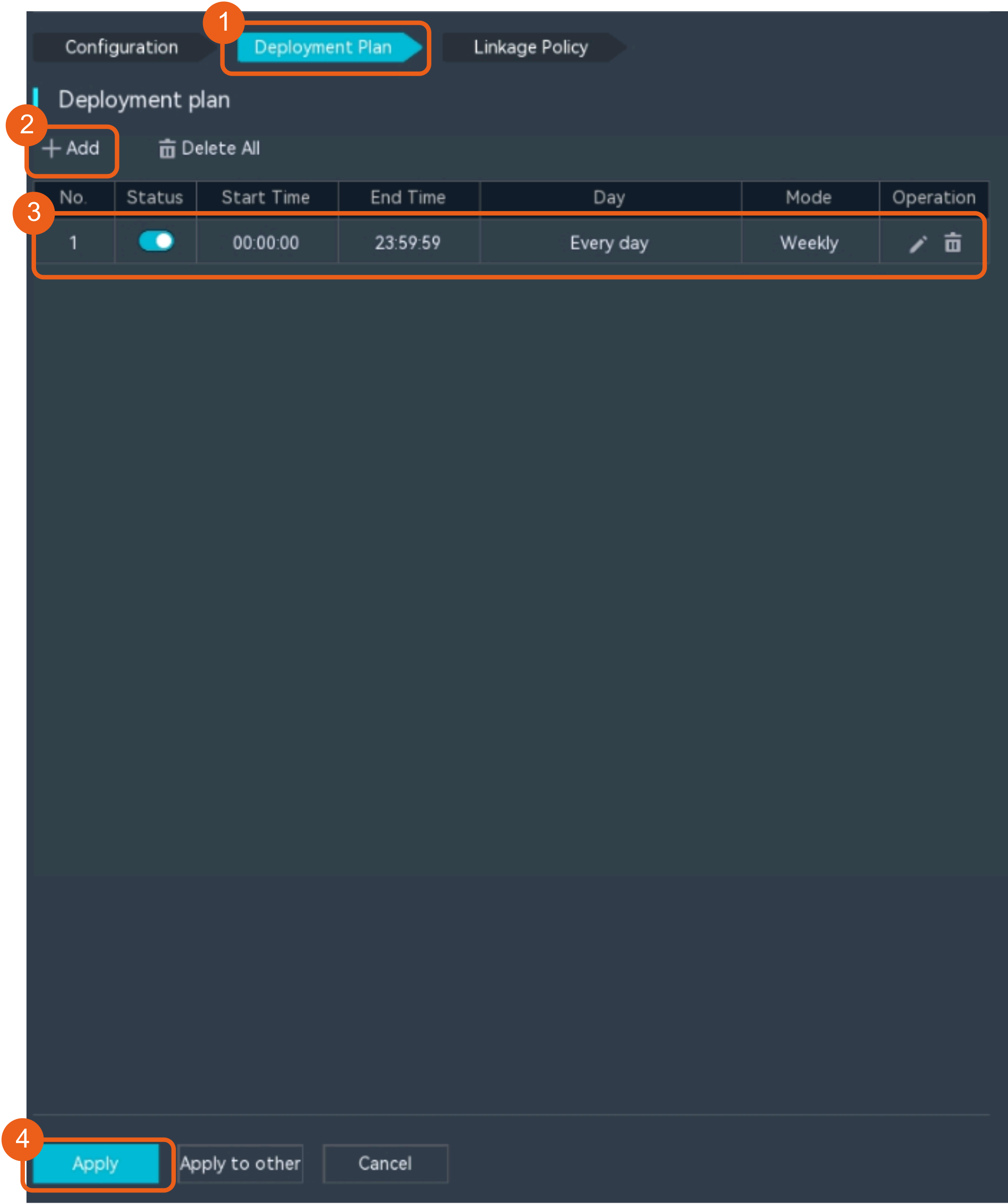
- Configure an alert plan, as shown in Figure 4-299.
Table 4-271 describes the key parameters and buttons.
Table 4-271 Parameter/Button descriptionParameter/Button
Description
Add
Button for adding an alert plan. A maximum of eight alert plans are supported.
Delete All
Button for deleting all alert plans.

Button for enabling or disabling an alert plan. If you toggle on Status, the alert plan takes effect.
Day
Date on which an alert plan is executed.
The default value is Every Day.
Mode
Mode in which an alert plan is executed.
- Weekly
- One-off
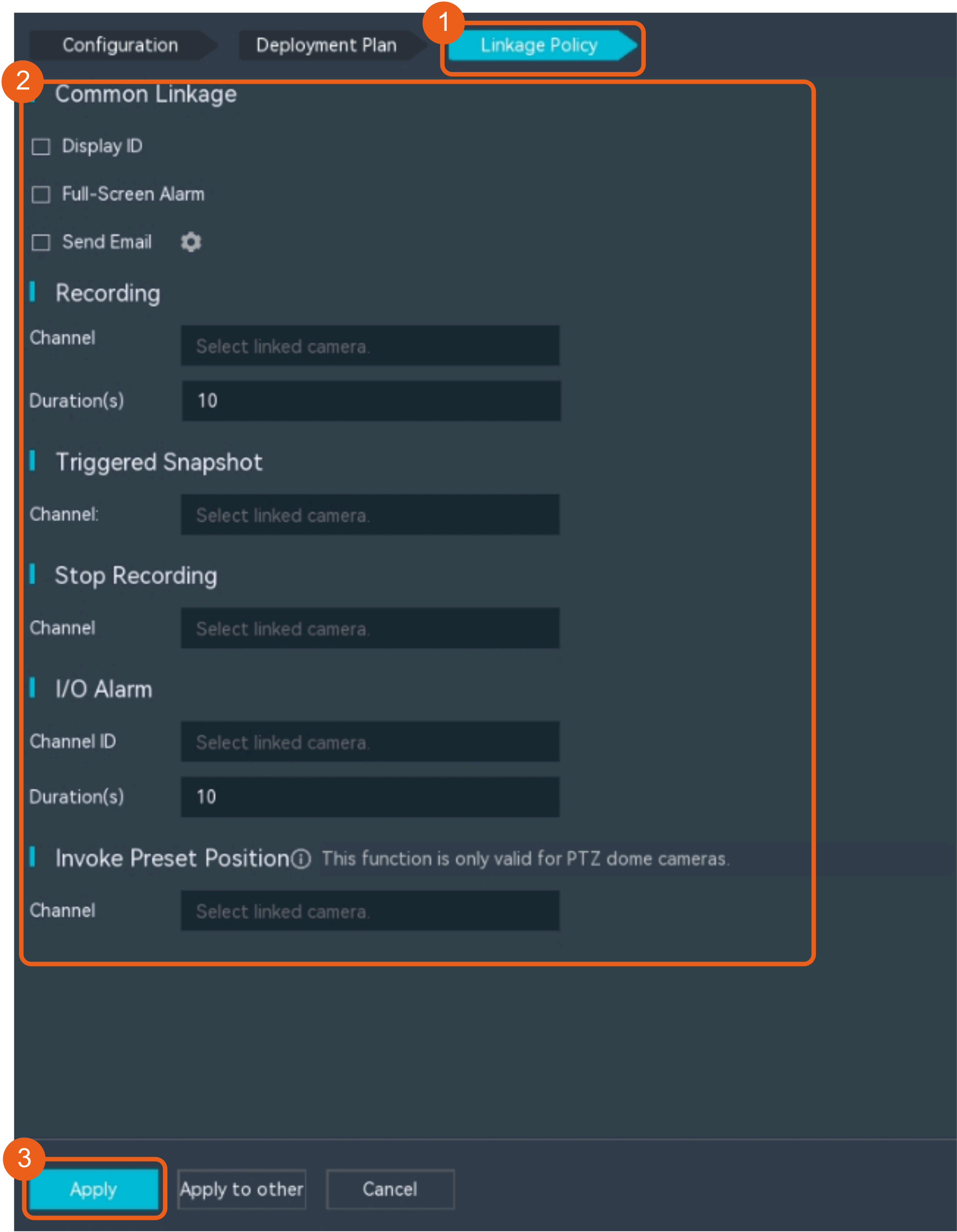
- Configure an alarm linkage policy, as shown in Figure 4-300.
Table 4-272 describes the key parameters and buttons.
Table 4-272 Parameter/Button descriptionType
Parameter
Description
Common Linkage
Display ID
Indicates whether to display the status icon of the camera that triggers an alarm on the live video viewing page. This function is used to notify users of an alarm generated by the current camera.
Full-Screen Alarm
Indicates whether to display alarms in full screen mode.
After this function is enabled, if a camera triggers an alarm and the live video viewing page is displayed on the LDU, the live video of the camera is played in full screen mode for 5s.
CAUTION:If other alarms are generated when the live video is played in full-screen mode, the full-screen alarm function is not triggered.
Send Email
- Indicates whether to send email notifications. After this function is enabled, the system sends an email to the configured email recipient when a service alarm is generated.
- You can click
 to customize the alarm email recipient and email body.
The email address for sending service alarms needs to be customized on the OMU portal.
For details about how to set the email address for sending service alarms, see How Do I Configure Connection to the SMTP Server?.
Recording
Channel
Camera to be linked to record video when an alarm is triggered.
Duration(s)
Customized recording duration. The value ranges from 5 to 3600, in seconds. You are advised to set this parameter to a value greater than or equal to 60 (default).
Triggered Snapshot
Channel
Camera to be linked to take snapshots when an alarm is triggered.
NOTE:If both snapshot taking and email sending are configured for alarm linkage, you can obtain both the alarm-triggered snapshots and the snapshots sent in the email.
Stop Recording
Channel
Camera to be linked to stop video recording when an alarm is triggered.
I/O Alarm
Channel ID
Alarm reporting channel.
Duration(s)
Customized alarm linkage duration.
The value ranges from 1 to 3600, in seconds.
NOTE:If the specified alarm linkage duration is different from the I/O alarm output duration configured in How Do I Connect Cables and Configure Alarm Input and Output Ports?, the shorter alarm duration is used.
For example, if the I/O alarm output duration is set to 20s and the alarm linkage duration is set to 30s, the actual alarm output duration is 20s.
Invoke Preset Position
Channel
Camera to be linked. When a service alarm is generated, the linked camera rotates to the specified preset position.
Before enabling preset position linkage, ensure that a preset position has been configured for the camera to be linked. For details about how to configure a preset position, see Feature Configuration.
Device
Name of the camera that is linked to a preset position.
Position
Preset position linked to the camera.
Procedure (on the iClient S100)
- On the iClient S100 home page, choose Maintenance Management > Smart Configuration.
- Select a camera connected to an HWT-IVS1800 and choose .
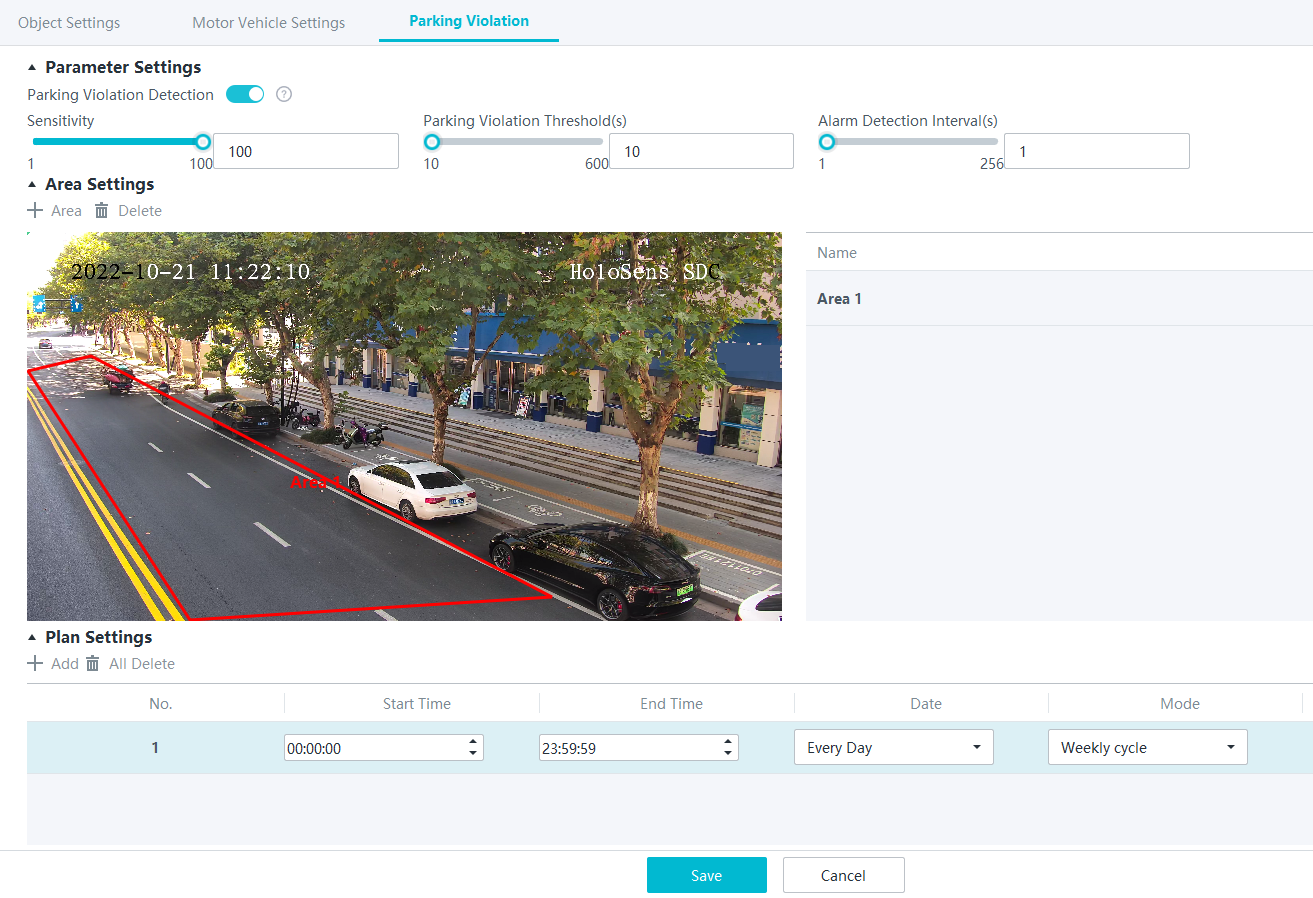
- Enable parking violation detection, add a detection area, and set parameters, as shown in Figure 4-301. Table 4-273 describes the parameters and buttons.
Table 4-273 Parameter/Button description
Parameter/Button
Description
Parking Violation Detection
Indicates whether to enable parking violation detection.
Sensitivity
Detection sensitivity.
The value ranges from 1 to 100. A larger value indicates higher sensitivity.
Parking Violation Threshold(s)
Vehicle stay duration threshold. An alarm is triggered only when the vehicle stay duration exceeds the value of this parameter.
Alarm Detection Interval(s)
Interval at which alarms are checked.
Area
Button for adding a detection area. You can draw a maximum of four detection areas.
Delete
Button for deleting a selected detection area.
- Click Save.
Feature Verification
Procedure (on the LDU)
- Log in to the LDU as the admin user. ( Logging In to the LDU)
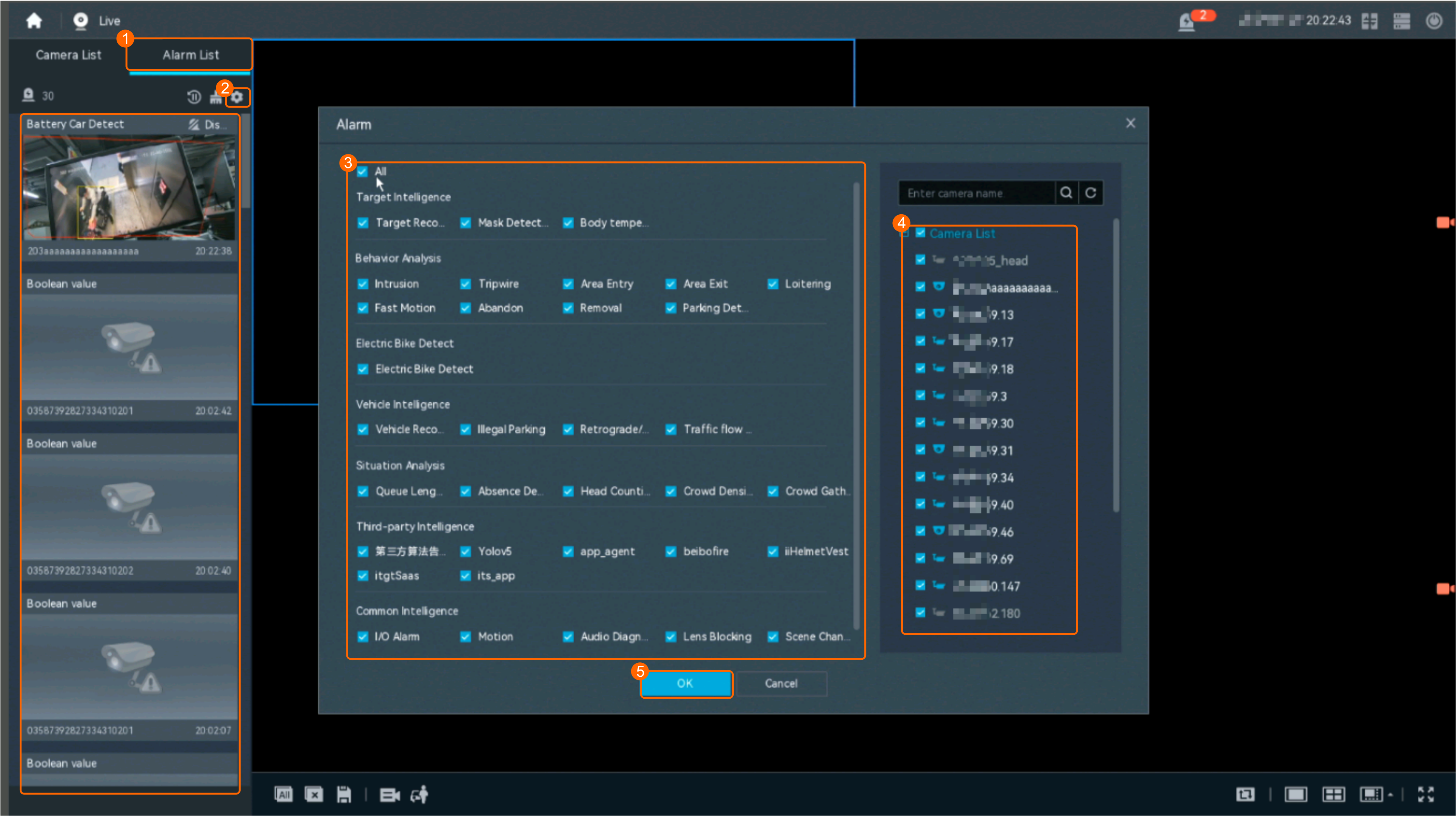
- View real-time alarms.
- Right-click on the desktop and choose Live > Alarm List.
- Click
 and select the type of alarms to be viewed, as shown in Figure 4-302.
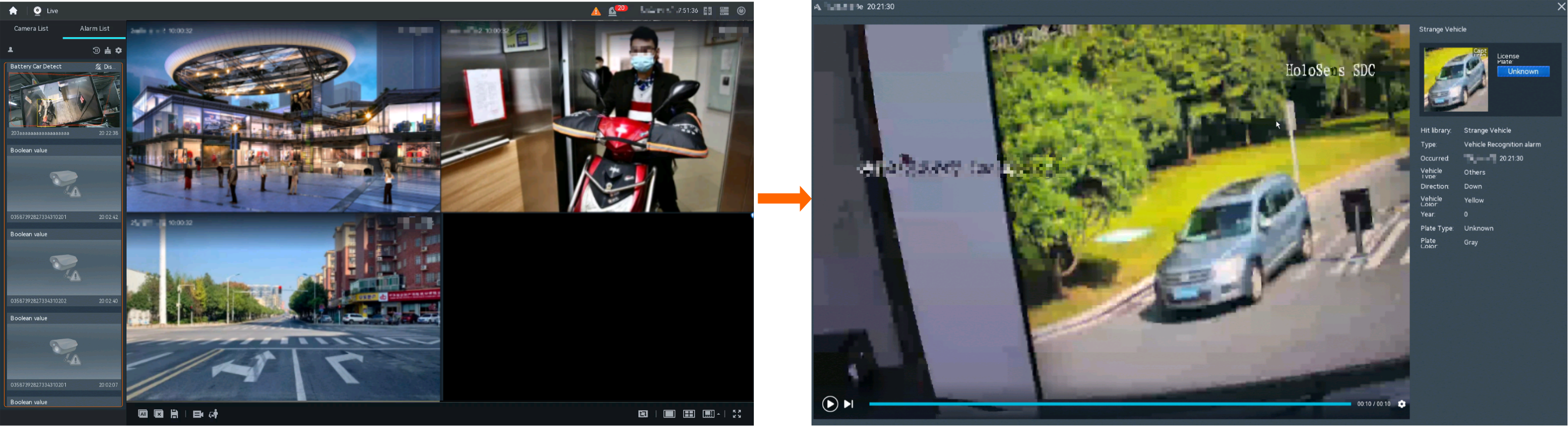
- Click an alarm card in the alarm list to view the alarm in full screen mode, as shown in Figure 4-303.
- By default, the alarm-triggered video is 10s long (5s before and 5s after the alarm time).
- If you click
 , the alarm list on the left stops refreshing the latest alarms. If you click
  again, the system refreshes all new alarms generated after the alarm refresh stops.
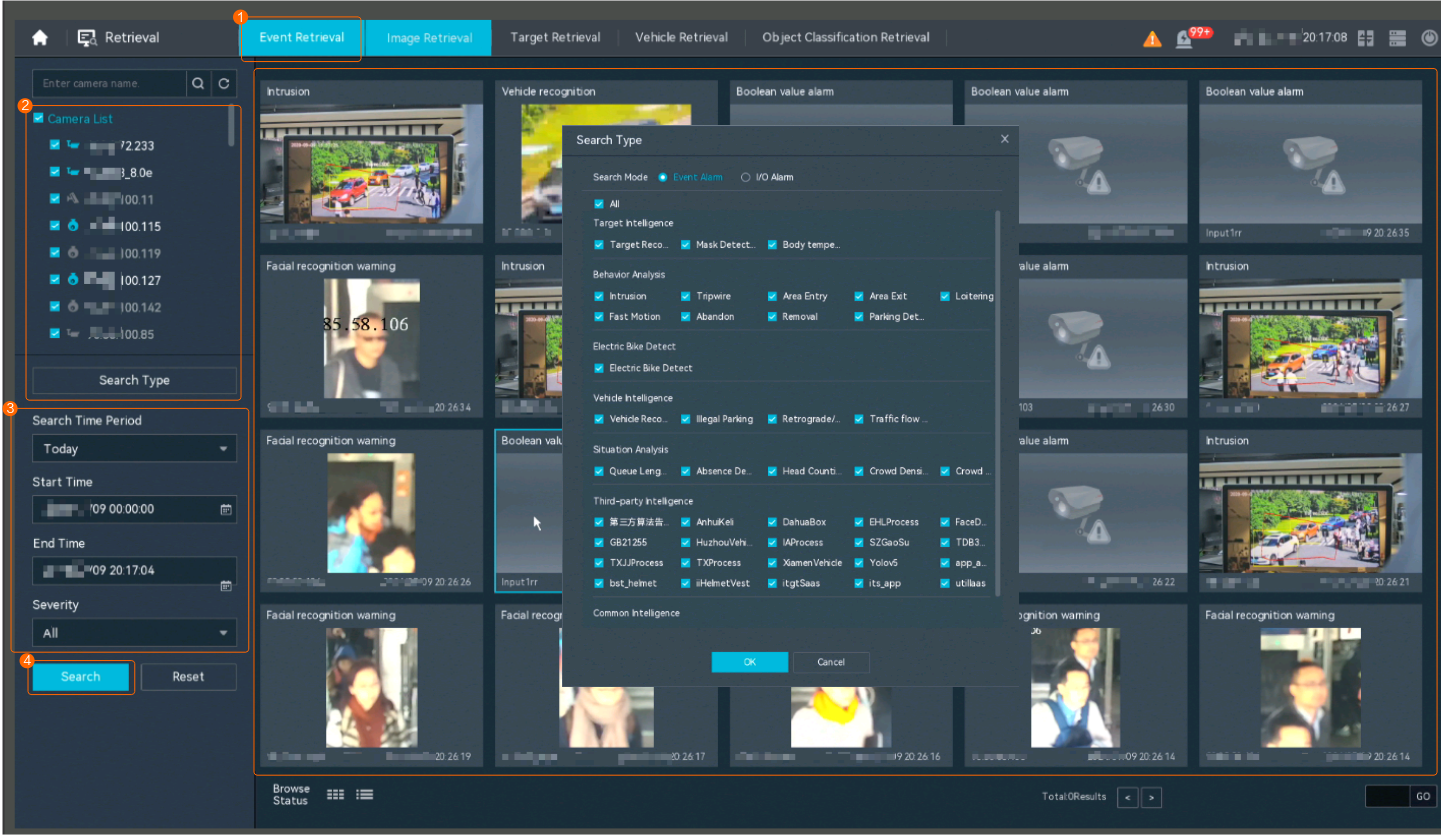
- View historical alarms.
- Right-click on the desktop and choose Retrieval.
- Choose Event Retrieval.
- View alarms, as shown in Figure 4-304.
You can click the Browsing Status icon to switch the alarm browsing mode. Alarms in the alarm center can be browsed in card or list mode.
Procedure (on the iClient S100)
For details about how to view the latest or historical alarms, see Viewing Alarms (on the iClient S100).